> ## Documentation Index
> Fetch the complete documentation index at: https://terminal-docs.xendit.co/llms.txt
> Use this file to discover all available pages before exploring further.
# Android SDK (Kotlin)
> Integrate Xendit's Terminal C2C SDK into your Android applications with our comprehensive Kotlin SDK
# Terminal C2C SDK for Android (Kotlin)
**The Terminal C2C SDK is a convenience wrapper** around the [Terminal C2C API](/api-reference/c2c/introduction). For providers other than BRI and NTT, you can call the Terminal C2C API directly without the SDK. BRI and NTT terminals require either the [Gateway App](/sdk/gateway/app-configuration) or the C2C SDK as a pre-install.
The Terminal C2C SDK for Android enables you to integrate secure payment processing directly into your Android applications. This SDK provides a client-to-client communication interface that allows your POS system to interact with the Terminal Gateway over the local network.
TerminalC2C is a singleton object that provides both synchronous (suspend) and asynchronous methods for payment operations. It handles HTTP communication with the Terminal Gateway, request serialization, response parsing, and comprehensive error handling.
## Version information
What's new:
* **Activity Lifecycle Management**: Introduced `TerminalActivityLifecycleObserver` interface for reusable activity lifecycle tracking, intent queuing, and dispatch logic
* **Enhanced Provider App Launching**: Refactored Atom and SHC provider app launchers with improved background app launch handling
* **Launch Failure Notifications**: Added notification mechanism to prompt users when provider app launch fails while app is in background
* **Callback Interface**: New `TerminalAppLauncherCallback` interface for custom handling of provider app launch failures
* **Improved Maintainability**: Centralized lifecycle and launcher logic for better extensibility across different application contexts
What's new:
* **Device Connection Observability**: Added `observeConnection()` and `connectionState()` APIs to monitor real-time connection state changes (CONNECTING, CONNECTED, DISCONNECTED, CONNECTING\_FAILED)
* **Error State Observability**: Added `observeError()` and `errorState()` APIs to track terminal errors in real-time with device context
* **Connection Testing**: New `testDeviceConnection()` method to verify terminal reachability before making requests
What's new:
* Fixed casting issue on C2C request payload to improve compatibility and prevent runtime errors.
What's new:
* Added Cashup provider support for Indonesian terminals
What's new:
* Added SHC provider support for Malaysian terminals
* Added multiple-provider support enabling apps to handle different terminal types simultaneously
* Enhanced TerminalDevice configuration with provider-specific methods
* Improved terminal selection for apps managing multiple Terminal devices
The SDK follows semantic versioning. Breaking changes will bump the major version number.
## Installation
Follow these steps to add the Terminal C2C Android SDK to your project.
Add `mavenCentral()` to your Gradle configuration so Gradle can resolve the SDK artifacts.
Add Maven Central to your Gradle settings file:
```kotlin settings.gradle(.kts) theme={null}
dependencyResolutionManagement {
repositories {
// ... other repositories
mavenCentral()
}
}
```
```groovy settings.gradle theme={null}
dependencyResolutionManagement {
repositories {
// ... other repositories
mavenCentral()
}
}
```
Add Maven Central to your root build.gradle file:
```kotlin build.gradle.kts (root) theme={null}
allprojects {
repositories {
// ... other repositories
mavenCentral()
}
}
```
```groovy build.gradle (root) theme={null}
allprojects {
repositories {
// ... other repositories
mavenCentral()
}
}
```
Verify `mavenCentral()` is available in the repository list used by your app module.
Add the required dependencies to your `build.gradle.kts` or `build.gradle` file:
```kotlin build.gradle.kts theme={null}
dependencies {
// Terminal C2C SDK
implementation("co.xendit.terminal:c2c-android:")
// Core Terminal SDK (required)
implementation("co.xendit.terminal:core-android:")
// Optional: Provider-specific dependencies for helper methods
// Indonesia - BRI terminals
implementation("co.xendit.terminal:id-bri-android:")
// Indonesia - Cashup terminals
implementation("co.xendit.terminal:id-cashup-android:")
// Thailand - NTT terminals
implementation("co.xendit.terminal:th-ntt-android:")
// Malaysia - SHC terminals
implementation("co.xendit.terminal:my-shc-android:")
}
```
```groovy build.gradle theme={null}
dependencies {
// Terminal C2C SDK
implementation 'co.xendit.terminal:c2c-android:'
// Core Terminal SDK (required)
implementation 'co.xendit.terminal:core-android:'
// Optional: Provider-specific dependencies for helper methods
// Indonesia - BRI terminals
implementation 'co.xendit.terminal:id-bri-android:'
// Indonesia - Cashup terminals
implementation 'co.xendit.terminal:id-cashup-android:'
// Thailand - NTT terminals
implementation 'co.xendit.terminal:th-ntt-android:'
// Malaysia - SHC terminals
implementation 'co.xendit.terminal:my-shc-android:'
}
```
Provider-specific dependencies are optional and enable convenient helper methods for creating `TerminalDevice` instances. Include only the dependencies for providers you plan to use.
Sync your project to download the dependencies.
## Getting Started
Before starting, you'll need an In-Person Payment CLIENT\_KEY from the Xendit In-Person Payment team. You will also need the terminal [IP address](#finding-terminal-information) and [Terminal ID (TID)](#finding-terminal-information).
### Step 1: Initialize Terminal App
Initialize the Terminal App with your client key:
```kotlin theme={null}
import co.xendit.terminal.core.TerminalApp
// In your Application class or Activity
TerminalApp.initialize(context, CLIENT_KEY, TerminalMode.LIVE)
// or TerminalMode.INTEGRATION for testing
```
Replace `CLIENT_KEY` with your actual client key from the Xendit dashboard.
### Step 2: Add Terminal Providers
For Share Commerce (SHC) and Cashup terminals, make sure the Gateway app is installed on the device. If it is missing, install it from the Gateway download page or contact [inpersonpayments@xendit.co](mailto:inpersonpayments@xendit.co) for assistance.
```kotlin theme={null}
// Add BRI provider for Indonesian terminals
TerminalC2C.addProvider(TerminalBRI)
```
**Required dependency:**
```kotlin build.gradle.kts theme={null}
implementation("co.xendit.terminal:id-bri-android:")
```
BRI provider supports timeout configuration for card and QR transactions, and provides enhanced transaction retry capabilities.
```kotlin theme={null}
// Add NTT provider for Thai terminals
TerminalC2C.addProvider(TerminalNTT)
```
**Required dependency:**
```kotlin build.gradle.kts theme={null}
implementation("co.xendit.terminal:th-ntt-android:")
```
NTT provider supports multi-function terminals with card payments and QR code transactions.
```kotlin theme={null}
// Add Cashup provider for Indonesian terminals
TerminalC2C.addProvider(TerminalCashup)
```
**Required dependency:**
```kotlin build.gradle.kts theme={null}
implementation("co.xendit.terminal:id-cashup-android:")
```
Cashup provider offers simplified integration with essential payment methods.
```kotlin theme={null}
// Add SHC provider for Malaysian terminals
TerminalC2C.addProvider(TerminalSHC)
```
**Required dependency:**
```kotlin build.gradle.kts theme={null}
implementation("co.xendit.terminal:my-shc-android:")
```
SHC provider supports Share Commerce terminals tailored for Malaysia with card flows.
```kotlin theme={null}
// Add multiple providers
TerminalC2C.addProvider(TerminalBRI)
TerminalC2C.addProvider(TerminalNTT)
TerminalC2C.addProvider(TerminalCashup)
TerminalC2C.addProvider(TerminalSHC)
```
This setup allows your app to work with different terminal types based on your merchant's configuration.
Provider dependencies are optional. You can use the generic `TerminalDevice.create()` method without adding provider-specific dependencies. Provider frameworks enable access to specialized helper methods like `TerminalDevice.bri()`, `TerminalDevice.ntt()`, and `TerminalDevice.cashup()`.
### Step 3: Configure Terminal Device
Set up your terminal device configuration using the [Terminal ID (TID)](#finding-terminal-information) and [IP address](#finding-terminal-information):
Use the generic `create` method (available without provider dependencies):
```kotlin theme={null}
import co.xendit.terminal.c2c.TerminalC2C
import co.xendit.terminal.c2c.data.Payment
import co.xendit.terminal.c2c.data.TerminalException
import co.xendit.terminal.core.data.TerminalDevice
import co.xendit.terminal.id.bri.BRIPaymentMethod
// Configure the default terminal device
val terminalDevice = TerminalDevice.create(
id = "TERMINAL_ID",
ipAddress = "192.168.1.100",
provider = "BRI" // or "CASHUP", "NTT"
)
// Set as default device for TerminalC2C
TerminalC2C.setTerminalDevice(terminalDevice)
```
Use provider-specific helper methods when you include the corresponding provider dependency:
```kotlin theme={null}
import co.xendit.terminal.c2c.TerminalC2C
import co.xendit.terminal.core.data.TerminalDevice
// For BRI terminals (requires id-bri-android dependency)
val briDevice = TerminalDevice.bri(
id = "TERMINAL_ID",
ipAddress = "192.168.1.100"
)
// For Cashup terminals (requires id-cashup-android dependency)
val cashupDevice = TerminalDevice.cashup(
id = "TERMINAL_ID",
ipAddress = "192.168.1.101"
)
// For NTT terminals (requires th-ntt-android dependency)
val nttDevice = TerminalDevice.ntt(
id = "TERMINAL_ID",
ipAddress = "192.168.1.102"
)
// For SHC terminals (requires my-shc-android dependency)
val shcDevice = TerminalDevice.shc(
id = "TERMINAL_ID",
ipAddress = "192.168.1.103"
)
// Set as default device for TerminalC2C
TerminalC2C.setTerminalDevice(briDevice) // or cashupDevice, nttDevice
```
Provider-specific methods require the corresponding dependency:
* `TerminalDevice.bri()` requires `co.xendit.terminal:id-bri-android`
* `TerminalDevice.cashup()` requires `co.xendit.terminal:id-cashup-android`
* `TerminalDevice.ntt()` requires `co.xendit.terminal:th-ntt-android`
* `TerminalDevice.shc()` requires `co.xendit.terminal:my-shc-android`
For apps handling multiple Terminal devices, configure each terminal and specify per transaction:
```kotlin theme={null}
import co.xendit.terminal.c2c.TerminalC2C
import co.xendit.terminal.core.data.TerminalDevice
// Configure multiple terminal devices
val cashierTerminal = TerminalDevice.create(
id = "TID001",
ipAddress = "192.168.1.100",
provider = "BRI"
)
val driveThruTerminal = TerminalDevice.create(
id = "TID002",
ipAddress = "192.168.1.101",
provider = "BRI"
)
val selfServiceTerminal = TerminalDevice.ntt(
id = "TID003",
ipAddress = "192.168.1.102"
)
// Use specific terminal per transaction
val payment = Payment(
orderID = "ORDER_123",
amount = 10000.0,
paymentMethod = BRIPaymentMethod.contactless
)
// Specify terminal device per request
val result = try {
TerminalC2C.createPayment(
payment = payment,
device = cashierTerminal,
isSimulation = false
)
} catch (error: TerminalException) {
// Handle payment failures per transaction
throw error
}
```
This approach allows dynamic terminal selection based on business logic, location, or user interaction without setting a global default.
You can also specify a device per request instead of setting a default device.
## Configuring App for Terminal Device
When running your application on a Terminal device, additional configuration is required to enable the terminal to communicate with the Cashup payment system. Follow these steps:
Add the Cashup result activity to your `AndroidManifest.xml` file:
```xml AndroidManifest.xml theme={null}
```
The `android:exported="true"` attribute is required to allow the Cashup system to return results to your application.
Choose one of the following approaches to configure your Application class:
Make your `Application` class extend `TerminalApplication` and configure the Cashup provider launcher:
```kotlin Application.kt theme={null}
import android.app.Application
import co.xendit.terminal.core.application.TerminalApplication
import co.xendit.terminal.cashup.TerminalCashup
import co.xendit.terminal.cashup.launcher.CashupAppLauncher
class MyApplication : TerminalApplication() {
override fun onCreate() {
super.onCreate()
// Configure Cashup provider app launcher
TerminalCashup.providerAppLauncher = CashupAppLauncher(this)
}
}
```
Don't forget to register your custom `Application` class in the `AndroidManifest.xml`:
```xml AndroidManifest.xml theme={null}
```
Create a custom `Application` class and register the `TerminalAppLauncherCallback`:
```kotlin Application.kt theme={null}
import android.app.Application
import co.xendit.terminal.core.application.TerminalAppLauncherCallback
import co.xendit.terminal.cashup.TerminalCashup
import co.xendit.terminal.cashup.launcher.CashupAppLauncher
class MyApplication : Application() {
override fun onCreate() {
super.onCreate()
// Register the callback
TerminalAppLauncherCallback.register(this)
// Configure Cashup provider app launcher
TerminalCashup.providerAppLauncher = CashupAppLauncher(this)
}
}
```
Don't forget to register your custom `Application` class in the `AndroidManifest.xml`:
```xml AndroidManifest.xml theme={null}
```
Your app is now configured to run on Cashup Terminal devices and can communicate with the Cashup payment system.
Control whether the terminal prints a receipt after a transaction:
```kotlin theme={null}
import co.xendit.terminal.cashup.utils.setCashupPrintReceiptEnabled
// Enable receipt printing
TerminalC2C.setCashupPrintReceiptEnabled(true)
// Disable receipt printing
TerminalC2C.setCashupPrintReceiptEnabled(false)
```
This setting allows you to control the default receipt printing behavior for Cashup terminals.
When running your application on a Terminal device, additional configuration is required to enable the terminal to communicate with the SHC payment system. Follow these steps:
Add the SHC result activity to your `AndroidManifest.xml` file:
```xml AndroidManifest.xml theme={null}
```
The `android:exported="true"` attribute is required to allow the SHC system to return results to your application.
Choose one of the following approaches to configure your Application class:
Make your `Application` class extend `TerminalApplication` and configure the SHC provider launcher:
```kotlin Application.kt theme={null}
import android.app.Application
import co.xendit.terminal.core.application.TerminalApplication
import co.xendit.terminal.shc.TerminalSHC
import co.xendit.terminal.shc.launcher.SHCAppLauncher
class MyApplication : TerminalApplication() {
override fun onCreate() {
super.onCreate()
// Configure SHC provider app launcher
TerminalSHC.providerAppLauncher = SHCAppLauncher(this)
}
}
```
Don't forget to register your custom `Application` class in the `AndroidManifest.xml`:
```xml AndroidManifest.xml theme={null}
```
Create a custom `Application` class and register the `TerminalAppLauncherCallback`:
```kotlin Application.kt theme={null}
import android.app.Application
import co.xendit.terminal.core.application.TerminalAppLauncherCallback
import co.xendit.terminal.shc.TerminalSHC
import co.xendit.terminal.shc.launcher.SHCAppLauncher
class MyApplication : Application() {
override fun onCreate() {
super.onCreate()
// Register the callback
TerminalAppLauncherCallback.register(this)
// Configure SHC provider app launcher
TerminalSHC.providerAppLauncher = SHCAppLauncher(this)
}
}
```
Don't forget to register your custom `Application` class in the `AndroidManifest.xml`:
```xml AndroidManifest.xml theme={null}
```
Your app is now configured to run on SHC Terminal devices and can communicate with the SHC payment system.
## Supported Payment Methods by Provider
When using `co.xendit.terminal:id-bri-android` dependency:
| Payment Method | Description | Code Example |
| --------------- | ----------------------- | ------------------------------ |
| **Insert Card** | Chip card transactions | `BRIPaymentMethod.insertCard` |
| **Contactless** | Tap-to-pay transactions | `BRIPaymentMethod.contactless` |
| **QRIS** | QR code payments | `BRIPaymentMethod.qris` |
| **Brizzi** | E-money card payments | `BRIPaymentMethod.brizzi` |
BRI terminals support both physical card payments and digital payment methods popular in Indonesia.
When using `co.xendit.terminal:id-cashup-android` dependency:
| Payment Method | Description | Code Example |
| -------------- | -------------------------- | -------------------------- |
| **Card** | Standard card transactions | `CashupPaymentMethod.card` |
| **QRIS** | QR code payments | `CashupPaymentMethod.qris` |
Cashup terminals focus on essential payment methods with card and QRIS support.
When using `co.xendit.terminal:th-ntt-android` dependency for Thailand market:
| Payment Method | Description | Code Example |
| --------------- | ------------------------------ | ------------------------------- |
| **Card** | Credit/debit card transactions | `NTTPaymentMethod.card` |
| **MultiIPP** | Installment payments | `NTTPaymentMethod.multiIpp` |
| **Alipay+** | Alipay transactions | `NTTPaymentMethod.alipayPlus` |
| **WeChat Pay** | WeChat payments | `NTTPaymentMethod.wechatPayCil` |
| **TrueMoney** | TrueMoney wallet | `NTTPaymentMethod.trueMoney` |
| **LINE Pay** | LINE Pay wallet | `NTTPaymentMethod.linePay` |
| **ShopeePay** | Shopee wallet | `NTTPaymentMethod.shopee` |
| **ThaiQR** | Thai QR standard | `NTTPaymentMethod.thaiQrCode` |
| **BBL QRCS** | Visa/Master QR | `NTTPaymentMethod.bblQrcs` |
| **Atome** | Atome BNPL | `NTTPaymentMethod.atome` |
| **Sabuy Money** | Sabuy wallet | `NTTPaymentMethod.sabuyMoney` |
| **Max Me** | Max Me wallet | `NTTPaymentMethod.maxMe` |
NTT terminals provide comprehensive payment method support for the Thai market, including local e-wallets and QR payment standards.
When using `co.xendit.terminal:my-shc-android` dependency for Malaysia market:
| Payment Method | Description | Code Example |
| -------------- | ------------------------------ | ----------------------- |
| **Card** | Credit/debit card transactions | `SHCPaymentMethod.card` |
SHC terminals support card payment methods tailored for the Malaysian market.
Provider-specific payment enums require the corresponding provider dependency. They expose the exact string values expected by each terminal while keeping your code type-safe.
Replace the enum with the provider you integrate: `CashupPaymentMethod`, `NTTPaymentMethod`, or `SHCPaymentMethod` mirror the samples above.
## API Usage
### Create Payment
Process a payment transaction using the TerminalC2C singleton:
```kotlin theme={null}
import co.xendit.terminal.c2c.TerminalC2C
import co.xendit.terminal.c2c.data.Payment
import co.xendit.terminal.c2c.data.TerminalException
import co.xendit.terminal.id.bri.BRIPaymentMethod
// Create payment data
val payment = Payment(
orderID = "ORDER_123",
amount = 10000.0,
paymentMethod = BRIPaymentMethod.contactless
)
// Execute payment (suspend function)
try {
val result = TerminalC2C.createPayment(
payment = payment,
device = null, // Optional: override the default device
isSimulation = false // Optional: pass true when exercising the simulator
)
println("Payment successful: ${result.status}")
} catch (error: TerminalException) {
println("Payment failed: ${error.message}")
}
```
For non-coroutine environments, call `TerminalC2C.createPaymentAsync` which returns an `ActionJob` you can cancel if the UI is dismissed. The callback signature is `(TerminalResult?, Throwable?)`.
### Simulation Testing
Use simulation mode to validate your integration without connecting to a physical terminal.
```kotlin theme={null}
import co.xendit.terminal.c2c.TerminalC2C
// Optional: toggle simulation globally for all subsequent requests
TerminalC2C.isSimulation = true
// Or pass the flag per payment request
val result = TerminalC2C.createPayment(
payment = payment,
isSimulation = true
)
```
Disable simulation (`TerminalC2C.isSimulation = false` and `isSimulation = false`) before running against real hardware. Use the special simulation amounts (400508 decline, 400509 unavailable, 400711 cancel) documented in the quickstart to trigger test scenarios.
### Cancel Payment
Cancel an ongoing payment transaction:
```kotlin theme={null}
import co.xendit.terminal.c2c.TerminalC2C
import co.xendit.terminal.c2c.data.Cancel
import co.xendit.terminal.c2c.data.TerminalException
import co.xendit.terminal.id.bri.BRIPaymentMethod
// Create cancel data
val cancel = Cancel(
paymentMethod = BRIPaymentMethod.contactless, // Optional
terminalReference = "123456" // Reference from previous transaction
)
try {
val result = TerminalC2C.cancelPayment(
cancel = cancel,
device = null,
isSimulation = false
)
println("Cancellation successful: ${result.status}")
} catch (error: TerminalException) {
println("Cancellation failed: ${error.message}")
}
```
### Print Receipt
Trigger receipt printing on the terminal:
```kotlin theme={null}
import co.xendit.terminal.c2c.TerminalC2C
import co.xendit.terminal.c2c.data.Receipt
import co.xendit.terminal.c2c.data.TerminalException
import co.xendit.terminal.id.bri.BRIPaymentMethod
// Create receipt data
val receipt = Receipt(
paymentMethod = BRIPaymentMethod.contactless, // Optional
terminalReference = "123456"
)
try {
val result = TerminalC2C.printReceipt(
receipt = receipt,
device = null,
isSimulation = false
)
println("Receipt print command sent: ${result.status}")
} catch (error: TerminalException) {
println("Receipt print failed: ${error.message}")
}
```
### Perform Settlement
Initiate a settlement (batch close) process:
```kotlin theme={null}
import co.xendit.terminal.c2c.TerminalC2C
import co.xendit.terminal.c2c.data.Settlement
import co.xendit.terminal.c2c.data.TerminalException
import co.xendit.terminal.id.bri.BRIPaymentMethod
// Create settlement data
val settlement = Settlement(
paymentMethod = BRIPaymentMethod.contactless // Optional: pass null to settle all methods
)
try {
val result = TerminalC2C.performSettlement(
settlement = settlement,
device = null,
isSimulation = false
)
println("Settlement successful: ${result.status}")
} catch (error: TerminalException) {
println("Settlement failed: ${error.message}")
}
```
### Get Transaction History
Retrieve transaction history from the terminal:
```kotlin theme={null}
import co.xendit.terminal.c2c.TerminalC2C
import co.xendit.terminal.c2c.data.Histories
import co.xendit.terminal.core.data.Status
import co.xendit.terminal.core.data.TerminalResult
import co.xendit.terminal.core.data.response.CommandType
// Create histories data with optional filters
val histories = Histories(
commands = listOf(CommandType.PAY, CommandType.CANCEL), // Optional: filter by command types
statuses = listOf(Status.SUCCESS), // Optional: filter by statuses
from = "2024-01-01T00:00:00Z", // Optional: ISO 8601 format start date
to = "2024-01-31T23:59:59Z" // Optional: ISO 8601 format end date
)
try {
val results: List = TerminalC2C.getHistory(histories)
println("Retrieved ${results.size} records")
results.forEach { transaction ->
println("Transaction status: ${transaction.status}")
}
} catch (error: TerminalException) {
println("Failed to retrieve history: ${error.message}")
}
```
## Async API Usage
For interoperability with Java or callback-based code, use the async methods:
### Create Payment (Async)
```kotlin theme={null}
import co.xendit.terminal.c2c.TerminalC2C
import co.xendit.terminal.c2c.data.Payment
import co.xendit.terminal.c2c.data.TerminalException
import co.xendit.terminal.id.bri.BRIPaymentMethod
val payment = Payment(
orderID = "ORDER_123",
amount = 10000.0,
paymentMethod = BRIPaymentMethod.contactless
)
val job = TerminalC2C.createPaymentAsync(
payment = payment,
device = null,
isSimulation = false
) { result, error ->
when {
error != null -> println("Payment failed: ${error.message}")
result != null -> println("Payment successful: ${result.status}")
else -> println("Payment finished with no result")
}
}
// Cancel the job if the user navigates away
job.cancel()
```
### Cancel Payment (Async)
```kotlin theme={null}
import co.xendit.terminal.c2c.TerminalC2C
import co.xendit.terminal.c2c.data.Cancel
import co.xendit.terminal.id.bri.BRIPaymentMethod
val cancel = Cancel(
paymentMethod = BRIPaymentMethod.contactless,
terminalReference = "123456"
)
val cancelJob = TerminalC2C.cancelPaymentAsync(
cancel = cancel,
device = null,
isSimulation = false
) { result, error ->
when {
error != null -> println("Cancellation failed: ${error.message}")
result != null -> println("Cancellation successful: ${result.status}")
}
}
cancelJob.cancel()
```
### Print Receipt (Async)
```kotlin theme={null}
import co.xendit.terminal.c2c.TerminalC2C
import co.xendit.terminal.c2c.data.Receipt
import co.xendit.terminal.id.bri.BRIPaymentMethod
val receipt = Receipt(
paymentMethod = BRIPaymentMethod.contactless,
terminalReference = "123456"
)
val receiptJob = TerminalC2C.printReceiptAsync(
receipt = receipt,
device = null,
isSimulation = false
) { result, error ->
when {
error != null -> println("Receipt print failed: ${error.message}")
result != null -> println("Receipt print command sent: ${result.status}")
}
}
receiptJob.cancel()
```
### Perform Settlement (Async)
```kotlin theme={null}
import co.xendit.terminal.c2c.TerminalC2C
import co.xendit.terminal.c2c.data.Settlement
import co.xendit.terminal.id.bri.BRIPaymentMethod
val settlement = Settlement(
paymentMethod = BRIPaymentMethod.contactless
)
val settlementJob = TerminalC2C.performSettlementAsync(
settlement = settlement,
device = null,
isSimulation = false
) { result, error ->
when {
error != null -> println("Settlement failed: ${error.message}")
result != null -> println("Settlement successful: ${result.status}")
}
}
settlementJob.cancel()
```
### Get History (Async)
```kotlin theme={null}
import co.xendit.terminal.c2c.TerminalC2C
import co.xendit.terminal.c2c.data.Histories
import co.xendit.terminal.core.data.Status
import co.xendit.terminal.core.data.TerminalResult
import co.xendit.terminal.core.data.response.CommandType
val histories = Histories(
commands = listOf(CommandType.PAY, CommandType.CANCEL),
statuses = listOf(Status.SUCCESS),
from = "2024-01-01T00:00:00Z",
to = "2024-01-31T23:59:59Z"
)
val historyJob = TerminalC2C.getHistoryAsync(
histories = histories,
device = null,
isSimulation = false
) { results: List?, error ->
when {
error != null -> println("Failed to retrieve history: ${error.message}")
results != null -> {
println("Retrieved ${results.size} records")
results.forEach { println("Transaction status: ${it.status}") }
}
}
}
historyJob.cancel()
```
## Configuration and Management
### Test Device Connection
Check if the terminal device is reachable before making requests:
```kotlin theme={null}
import co.xendit.terminal.c2c.TerminalC2C
import co.xendit.terminal.core.data.TerminalDevice
suspend fun checkConnection(device: TerminalDevice): Boolean {
val result = TerminalC2C.testDeviceConnection(device)
return result != null
}
```
### Observe Error State (Flow)
Listen for error updates using Kotlin Flow:
```kotlin theme={null}
import co.xendit.terminal.c2c.TerminalC2C
import kotlinx.coroutines.flow.launchIn
import kotlinx.coroutines.flow.onEach
import kotlinx.coroutines.CoroutineScope
import kotlinx.coroutines.Dispatchers
val errorFlow = TerminalC2C.errorState()
errorFlow.onEach { error ->
if (error != null) {
println("Terminal error: ${error.message}")
}
}.launchIn(CoroutineScope(Dispatchers.Main))
```
### Observe Connection State (Flow)
Monitor connection state changes:
```kotlin theme={null}
import co.xendit.terminal.c2c.TerminalC2C
import co.xendit.terminal.core.data.TerminalDevice
import kotlinx.coroutines.flow.launchIn
import kotlinx.coroutines.flow.onEach
import kotlinx.coroutines.CoroutineScope
import kotlinx.coroutines.Dispatchers
val device = TerminalDevice.create(
id = "TERMINAL_ID",
ipAddress = "192.168.1.100",
provider = "BRI"
)
val connectionFlow = TerminalC2C.connectionState(device)
connectionFlow.onEach { state ->
println("Connection state: $state")
}.launchIn(CoroutineScope(Dispatchers.Main))
```
### Observe Error and Connection with Callbacks
For callback-based observation (Java interoperability):
```kotlin theme={null}
import co.xendit.terminal.c2c.TerminalC2C
import co.xendit.terminal.core.data.TerminalDevice
// Observe error
TerminalC2C.observeError { error ->
if (error != null) println("Terminal error: ${error.message}")
}
// Observe connection
val device = TerminalDevice.create(
id = "TERMINAL_ID",
ipAddress = "192.168.1.100",
provider = "BRI"
)
TerminalC2C.observeConnection(device) { state ->
println("Connection state: $state")
}
```
## Error Handling
### TerminalException
The SDK throws `TerminalException` for terminal-specific errors:
```kotlin theme={null}
import co.xendit.terminal.c2c.TerminalC2C
import co.xendit.terminal.c2c.data.TerminalException
import co.xendit.terminal.c2c.data.ApiError
try {
val result = TerminalC2C.createPayment(payment)
} catch (e: TerminalException) {
val apiError = e.error
when (apiError.code) {
"FAILED_TO_CONNECT" -> {
// Terminal Gateway service not reachable
println("Cannot connect to Terminal Gateway")
}
"AUTHENTICATION_FAILED" -> {
// Invalid client key or terminal credentials
println("Authentication failed")
}
"TERMINAL_BUSY" -> {
// Terminal is processing another transaction
println("Terminal is busy")
}
else -> {
println("Error: ${apiError.message}")
}
}
}
```
### Error Structure
```kotlin theme={null}
data class TerminalException(
val httpStatus: Int,
val error: ApiError
)
data class ApiError(
val code: ErrorCode,
val message: String
)
```
## Troubleshooting
For more recovery scenarios across H2H and C2C terminal flows, see the [SDK Troubleshooting Guide](/sdk/troubleshooting).
### Common Issues and Solutions
**Problem**: SDK cannot reach the Terminal Gateway service.
**Solution**:
1. Verify Terminal Gateway service is running locally
2. Check the terminal device IP address is correct
3. Verify network connectivity between your app and gateway
```kotlin theme={null}
// Verify terminal device configuration
// Using generic method
val device = TerminalDevice.create(
id = "TERMINAL_ID",
ipAddress = "192.168.1.100", // Verify this IP
provider = "BRI" // or "CASHUP", "NTT"
)
// Or using provider-specific helper (requires provider dependency)
// val device = TerminalDevice.bri("TERMINAL_ID", "192.168.1.100")
// val device = TerminalDevice.cashup("TERMINAL_ID", "192.168.1.100")
// val device = TerminalDevice.ntt("TERMINAL_ID", "192.168.1.100")
TerminalC2C.setTerminalDevice(device)
```
**Problem**: Error indicating no terminal device is configured.
**Solution**: Set a default terminal device before making requests:
```kotlin theme={null}
// Set default device
TerminalC2C.setTerminalDevice(terminalDevice)
// Then make requests
val result = TerminalC2C.createPayment(payment)
```
**Problem**: Requests fail with authentication errors.
**Solutions**:
1. Verify TerminalApp is initialized with correct client key
2. Check terminal ID matches the configured device
3. Ensure client key has Terminal C2C permissions
```kotlin theme={null}
// Re-initialize with correct client key
TerminalApp.initialize(context, CLIENT_KEY, TerminalMode.LIVE)
```
**Problem**: Network-level errors when communicating with gateway.
**Solutions**:
1. Check network connectivity
2. Verify firewall settings allow connections to gateway port
3. Ensure Terminal Gateway service is accessible
4. Check terminal device IP address is reachable
Use network debugging tools to verify connectivity between your app and the Terminal Gateway service.
## Best Practices
### Error Handling
Always implement comprehensive error handling:
```kotlin theme={null}
suspend fun processPaymentSafely(orderID: String, amount: Double): Result {
return try {
val payment = Payment(
orderID = orderID,
amount = amount,
paymentMethod = BRIPaymentMethod.contactless
)
val result = TerminalC2C.createPayment(payment)
Result.success(result)
} catch (e: TerminalException) {
// Handle terminal-specific errors
Result.failure(e)
} catch (e: Exception) {
// Handle other errors
Result.failure(e)
}
}
```
### Device Management
Set up terminal device once during app initialization:
```kotlin Generic Method theme={null}
class PaymentManager {
init {
// Configure terminal device once using generic method
val terminalDevice = TerminalDevice.create(
id = "TERMINAL_001",
ipAddress = "192.168.1.100",
provider = "BRI" // or "CASHUP", "NTT"
)
TerminalC2C.setTerminalDevice(terminalDevice)
}
suspend fun createPayment(payment: Payment): TerminalResult {
return TerminalC2C.createPayment(payment)
}
}
```
```kotlin Provider-Specific Method theme={null}
class PaymentManager {
init {
// Configure terminal device using provider-specific helper
// (requires corresponding provider dependency)
val terminalDevice = TerminalDevice.bri(
id = "TERMINAL_001",
ipAddress = "192.168.1.100"
)
// or TerminalDevice.cashup(), TerminalDevice.ntt()
TerminalC2C.setTerminalDevice(terminalDevice)
}
suspend fun createPayment(payment: Payment): TerminalResult {
return TerminalC2C.createPayment(payment)
}
}
```
### Coroutine Scope Management
Use appropriate coroutine scopes for async operations:
```kotlin theme={null}
class PaymentActivity : AppCompatActivity() {
private val scope = CoroutineScope(Dispatchers.Main + SupervisorJob())
override fun onDestroy() {
super.onDestroy()
scope.cancel()
}
fun processPayment() {
val payment = Payment(
orderID = "ORDER_123",
amount = 10000.0,
paymentMethod = BRIPaymentMethod.contactless
)
scope.launch {
try {
val result = TerminalC2C.createPayment(payment)
// Update UI
} catch (e: Exception) {
// Handle error
}
}
}
}
```
## Finding Terminal Information
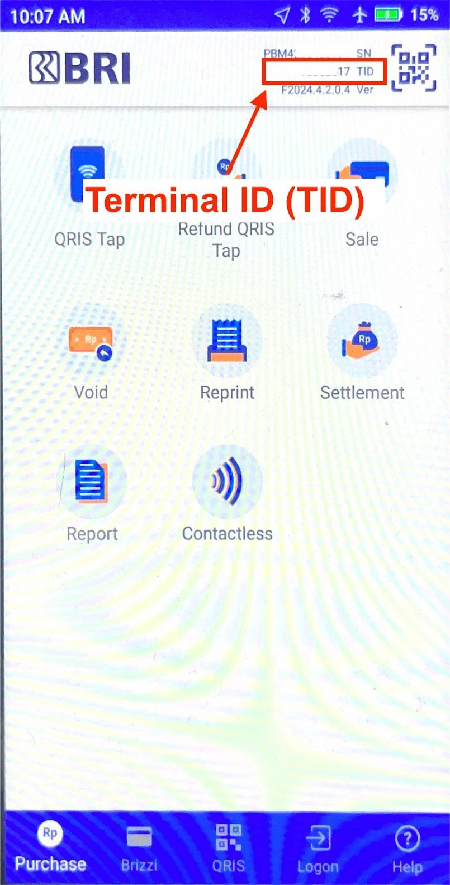
Open the BRI FMS app on the terminal device and locate the Terminal ID in the device information section.
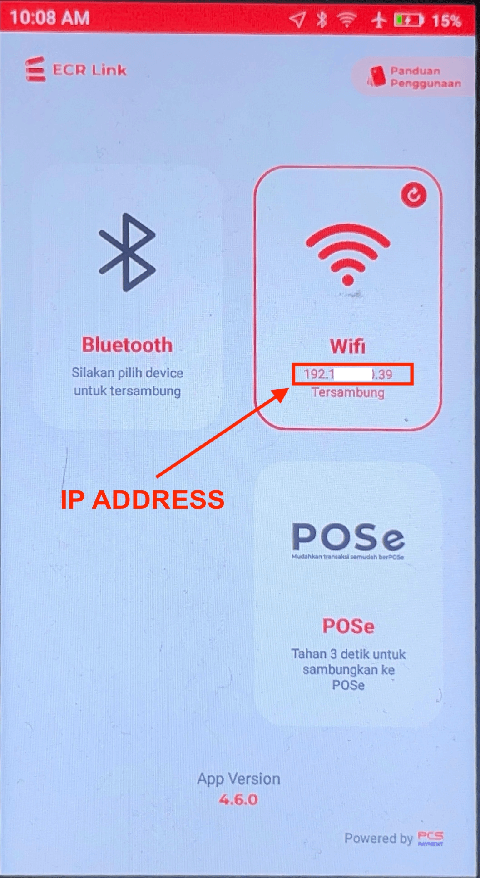
 Open the ECRLink app on the terminal and check the network settings for the IP address.
 Look for the Terminal ID on the physical sticker attached to the device.
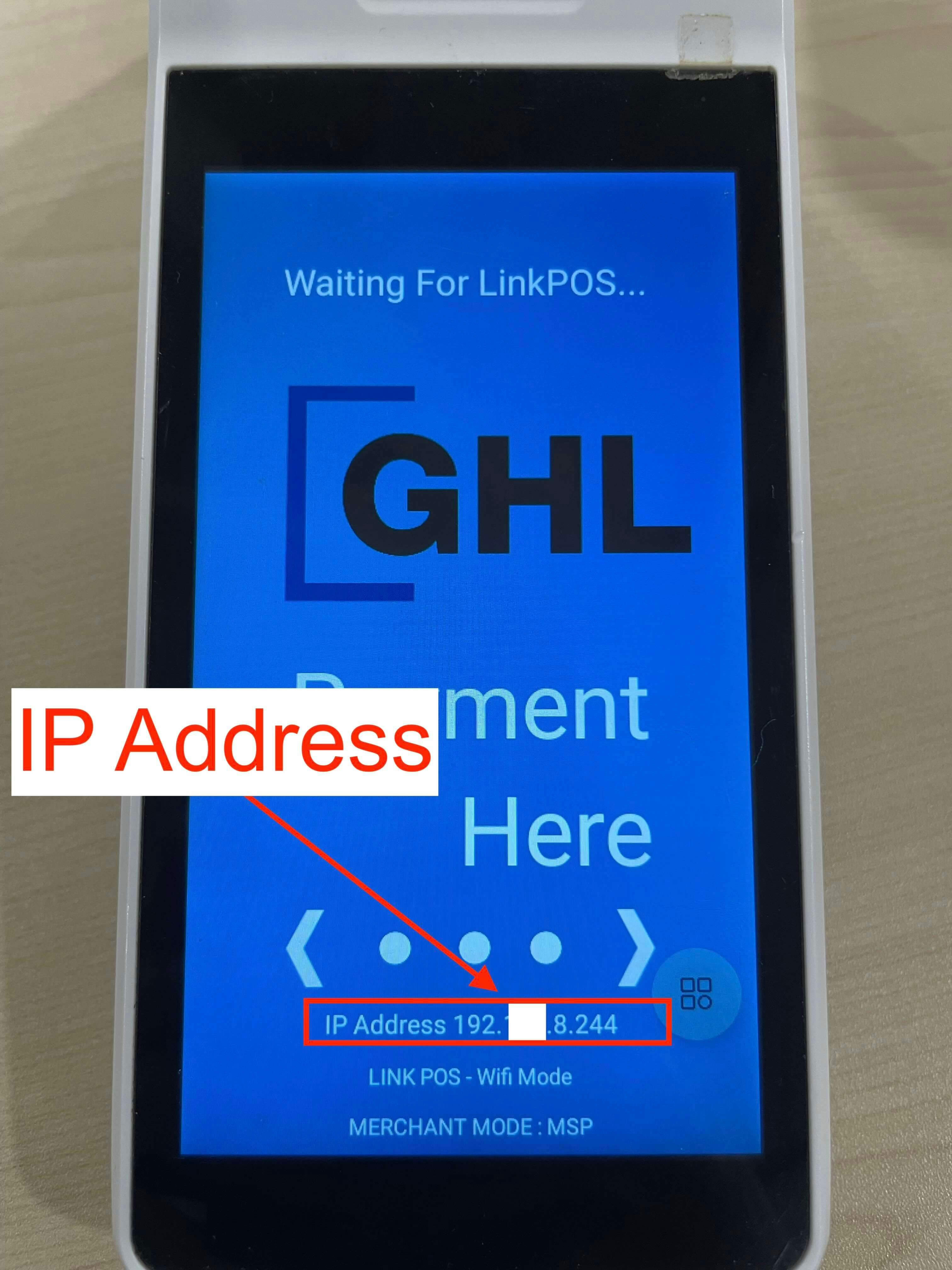
 Open the NTT LinkPOS app on the terminal and navigate to network settings to find the IP address.
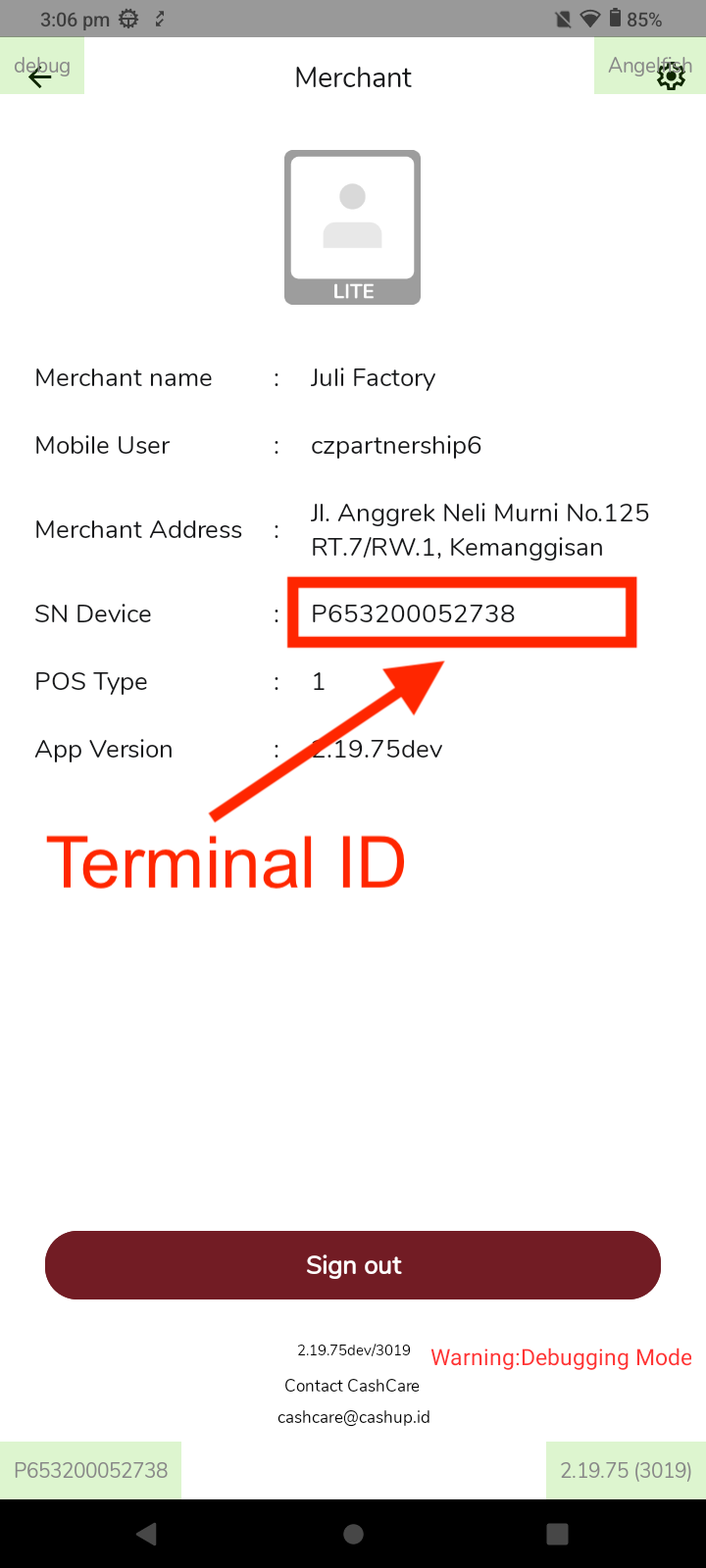
 Open the Cashlez app and navigate to the User Account tab to locate the Terminal ID.
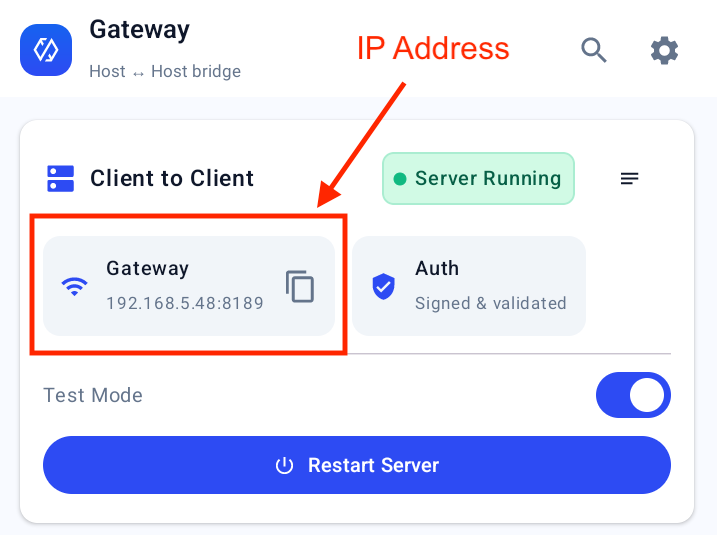
 Open the Terminal Gateway app and check the device list for the terminal IP address.
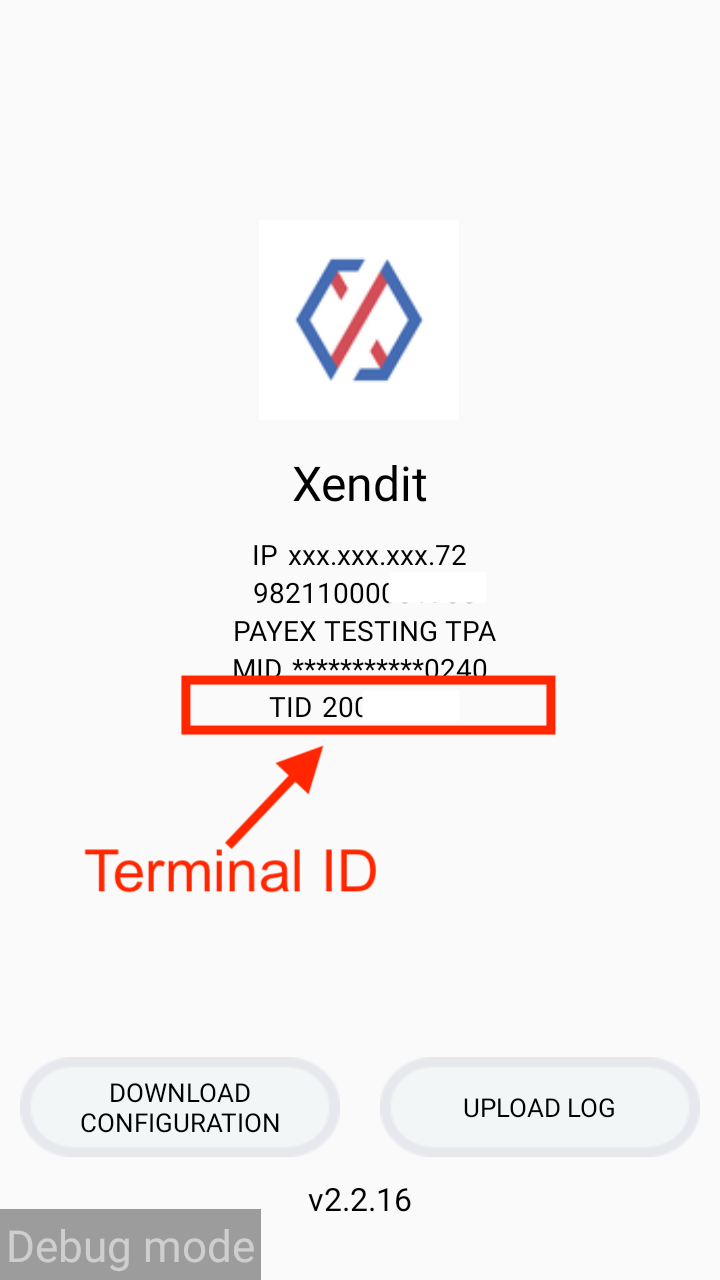
 Open the Xendit app on the device and review the terminal details screen to locate the Terminal ID.
 Open the Terminal Gateway app and check the device list for the terminal IP address.
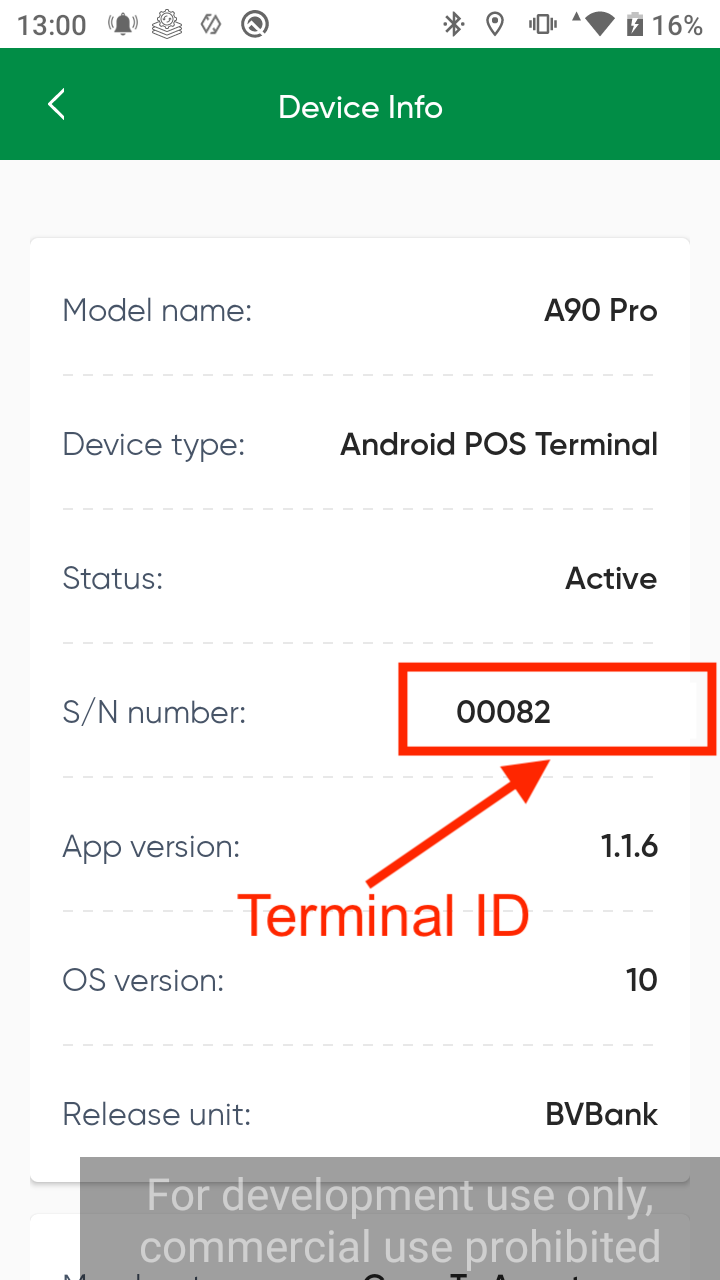
Open the payment app on the Atom terminal, then go to Settings → Device Info to view the Terminal ID.
Open the Terminal Gateway app and check the device list for the terminal IP address.
Open the payment app on the Atom terminal, then go to Settings → Device Info to view the Terminal ID.
 Open the Terminal Gateway app and check the device list for the terminal IP address.
Screenshots and UI layouts may vary by firmware or app version. Refer to the latest vendor documentation if the interface differs from these instructions.
Open the Terminal Gateway app and check the device list for the terminal IP address.
Screenshots and UI layouts may vary by firmware or app version. Refer to the latest vendor documentation if the interface differs from these instructions.