Terminal Gateway App Configuration
The Terminal Gateway app helps developers integrate their application with Xendit supported terminal devices. Configure connection types, manage devices, and monitor terminal status through an intuitive interface.Version information
v1.9.0 — 8-May-2026
v1.9.0 — 8-May-2026
- Improved Resource Management: Proper cleanup of observer jobs to prevent memory leaks and ensure optimal performance
- Activity Tracking Fix: Resolved bug where paused activities were not properly removed from the internal tracking list
- Enhanced Error Handling: Show Unsupported error for any invalid action to improve error visibility and debugging
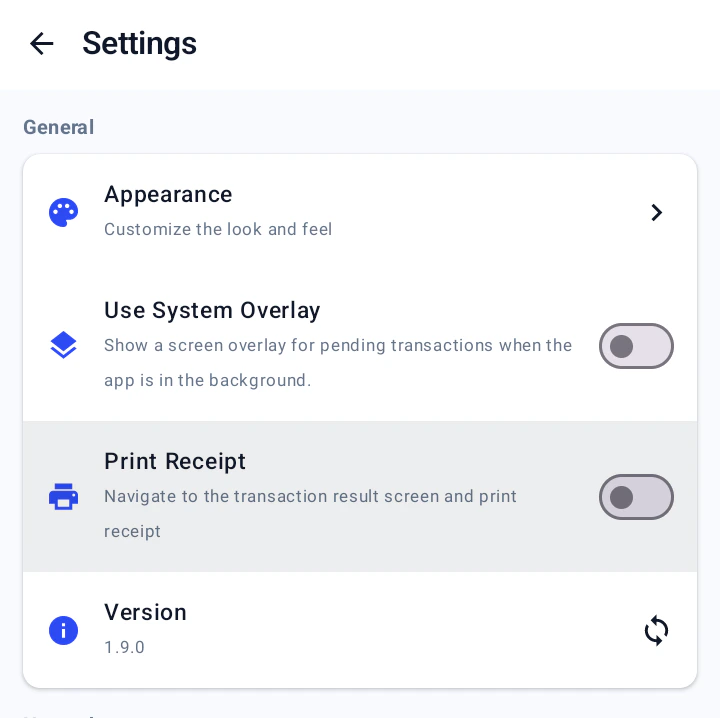
- Use System Overlay [Android]: New setting to show pending transactions as overlay instead of notification for better visibility
- Print Receipt Setting: Added Cashup provider setting to enable or disable receipt printing after transactions
v1.8.0 — 23-Apr-2026
v1.8.0 — 23-Apr-2026
- Added Cashup provider support for Indonesian terminals
- Fixed an issue where the C2C server restarted when launching the app
v1.7.1 — 12-Mar-2026
v1.7.1 — 12-Mar-2026
- Fixed text field not editable in configuration and input screens
- [Android] Fixed export log issue so logs export correctly
View all versions
View all versions
v1.7.0 — 19-Feb-2026
v1.7.0 — 19-Feb-2026
- Added Cashup provider support for Indonesian terminals
- Made the client-to-client port static at 8189 for consistent POS connectivity
v1.6.0 — 5-Dec-2025
v1.6.0 — 5-Dec-2025
- Fixed the NTT payment method value to ensure correct provider mapping
- Updated the BRI payment flow to validate transaction data before performing terminal actions
- Added timeout configuration for card and QR transactions to control operation windows
- Added support to handle retry requests via
/v1/terminal/sessions/{id}/retryendpoint
v1.5.0 — 20-Nov-2025
v1.5.0 — 20-Nov-2025
- Added support for multiple concurrent device connections so you can orchestrate simultaneous sessions across different terminals
- [BRI] Fixed status value handling in void and cancel API responses for improved transaction status accuracy
- Enhanced the Android app lifecycle with a splash screen, notification handling, and provider app launcher support for a smoother user experience
- Fixed client-to-client API calls and the associated request queue to prevent stalled commands
v1.4.0 — 30-Oct-2025
v1.4.0 — 30-Oct-2025
- Added transaction timeout configuration with UI support and validation
- Introduced command ID handling for settlement operations
- Enhanced retry logic with configurable attempt counts
- Improved error handling and logging throughout the gateway service
- In-app version update
- Renamed to Gateway with updated icons
v1.3.2 — 7-Oct-2025
v1.3.2 — 7-Oct-2025
- Fix data mapping for terminal responses
- Hide device’s restart button when connection mode is C2C
- Fix “restart service” button behavior on C2C mode
- [BRI] Enhanced status verification after transaction timeout for improved reliability
v1.3.1 — 26-Sep-2025
v1.3.1 — 26-Sep-2025
- Fix UI issue
- Fix date time parser issue
- Fix test flag toggle not showing correct state on app open
v1.3.0 — 11-Sep-2025
v1.3.0 — 11-Sep-2025
v1.2.1 — 27-Aug-2025
v1.2.1 — 27-Aug-2025
v1.2.0 — 7-June-2025
v1.2.0 — 7-June-2025
Download the app
Choose your operating system to download the Terminal Gateway app installer:macOS (.dmg)
Windows (.msi)
Android (.apk)
Getting Started
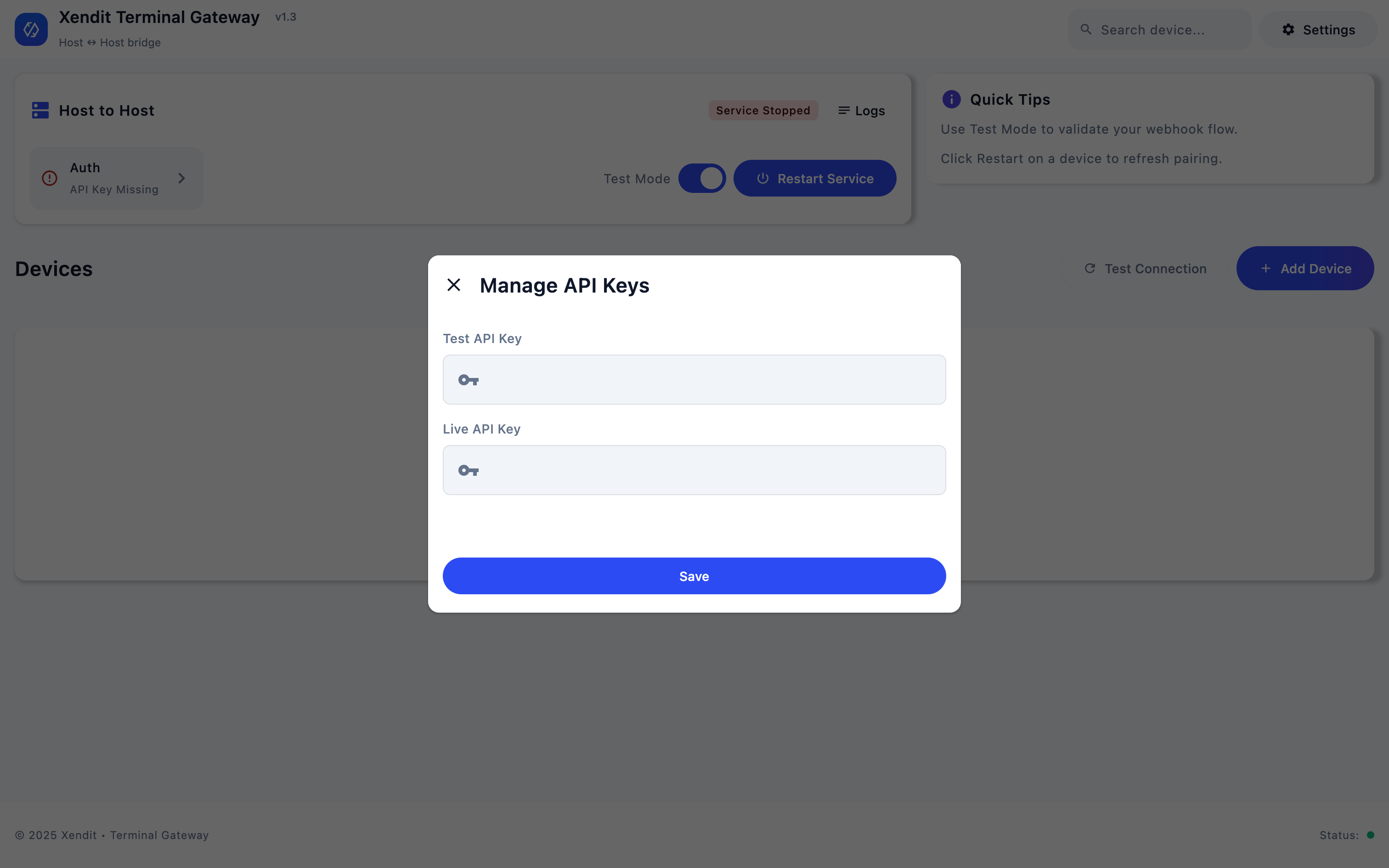
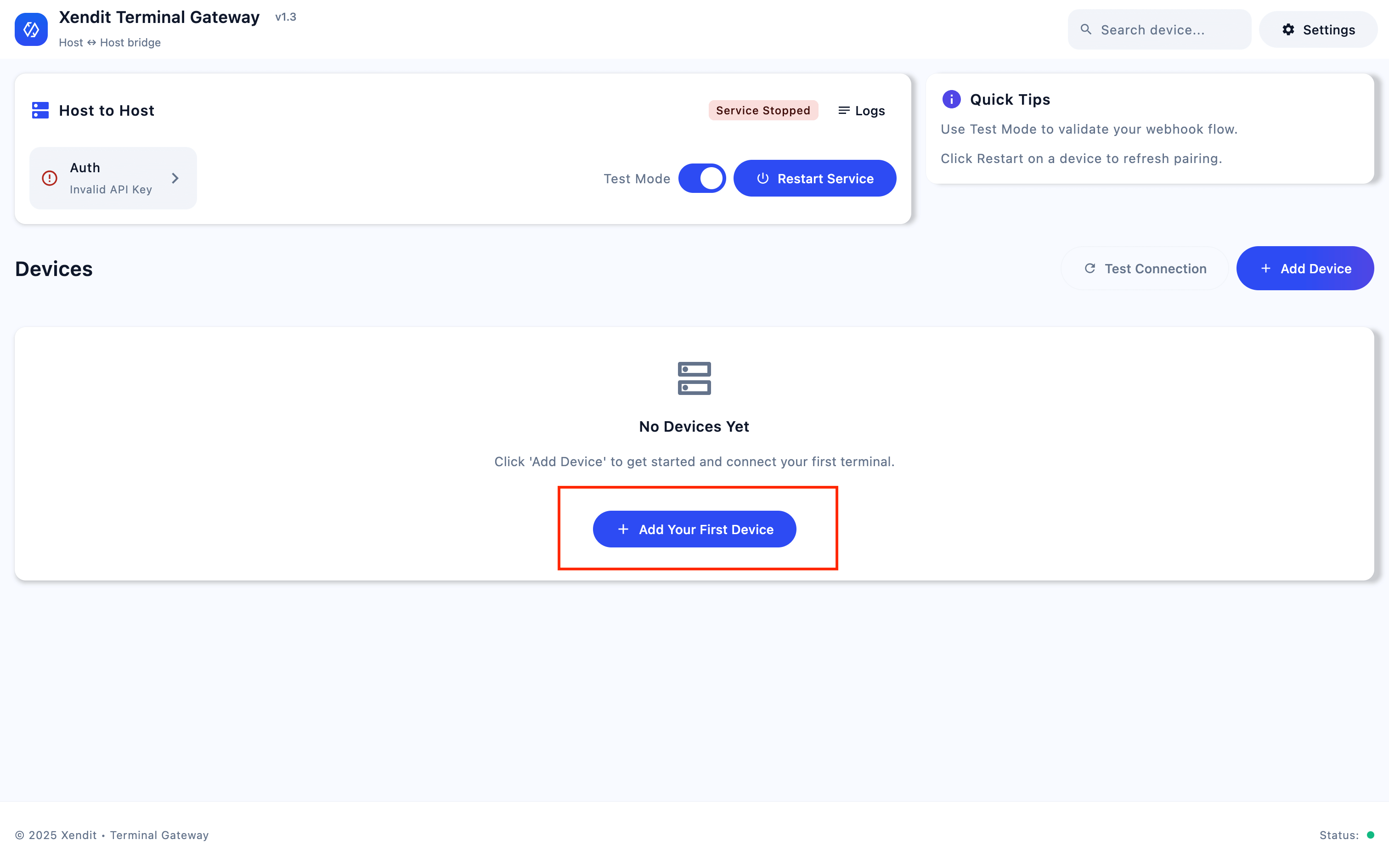
Before starting, you’ll need a terminal CLIENT_KEY from the Xendit In-Person Payments team and add a device.Enter Client Key
Add Your First Device
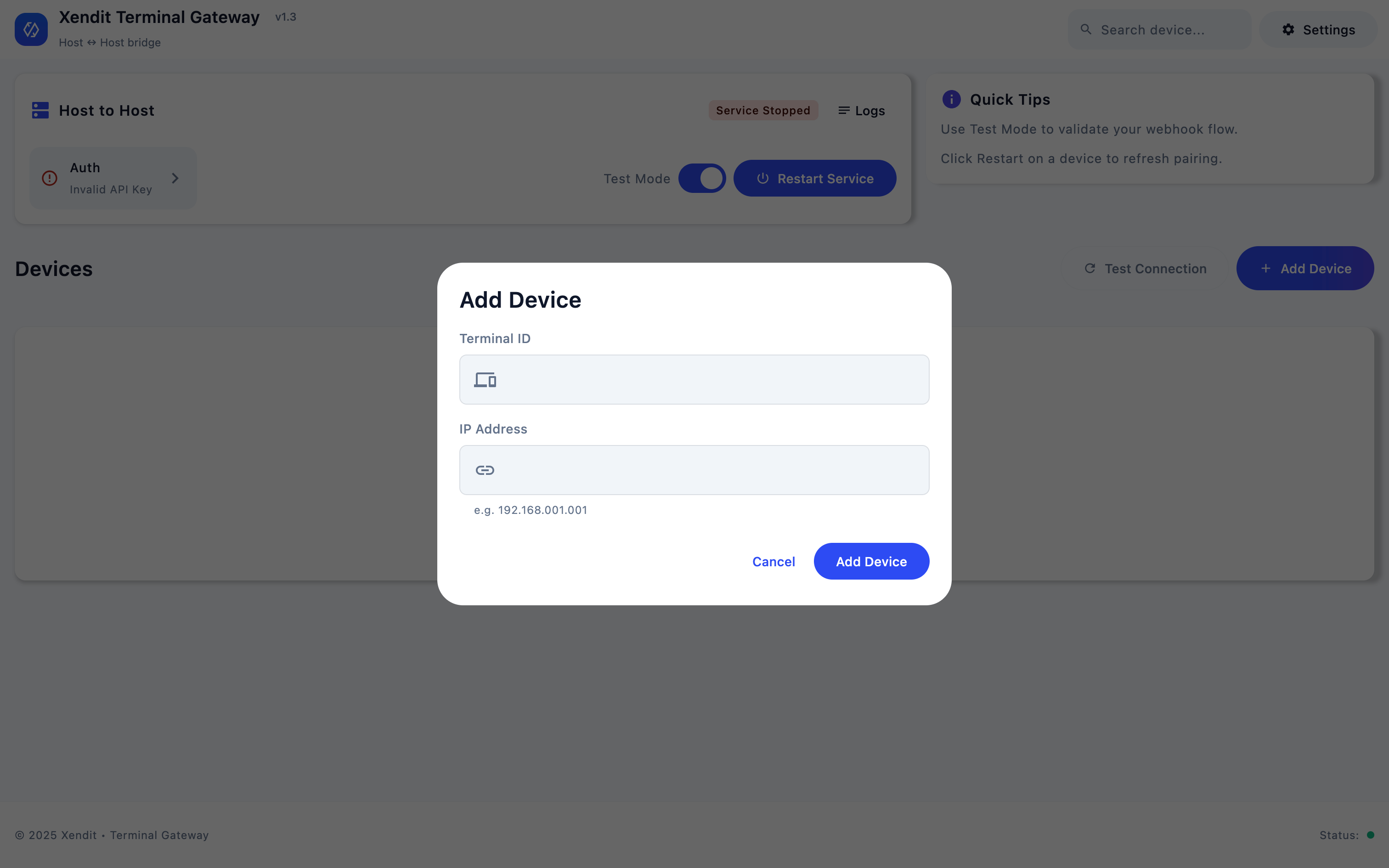
Configure Device
Test Connection
Connection Types
The Terminal Gateway app supports two connection modes for different integration scenarios:- Host-to-Host (Default)
- Client-to-Client
Default Configuration
Manage Terminals
Centralized Control
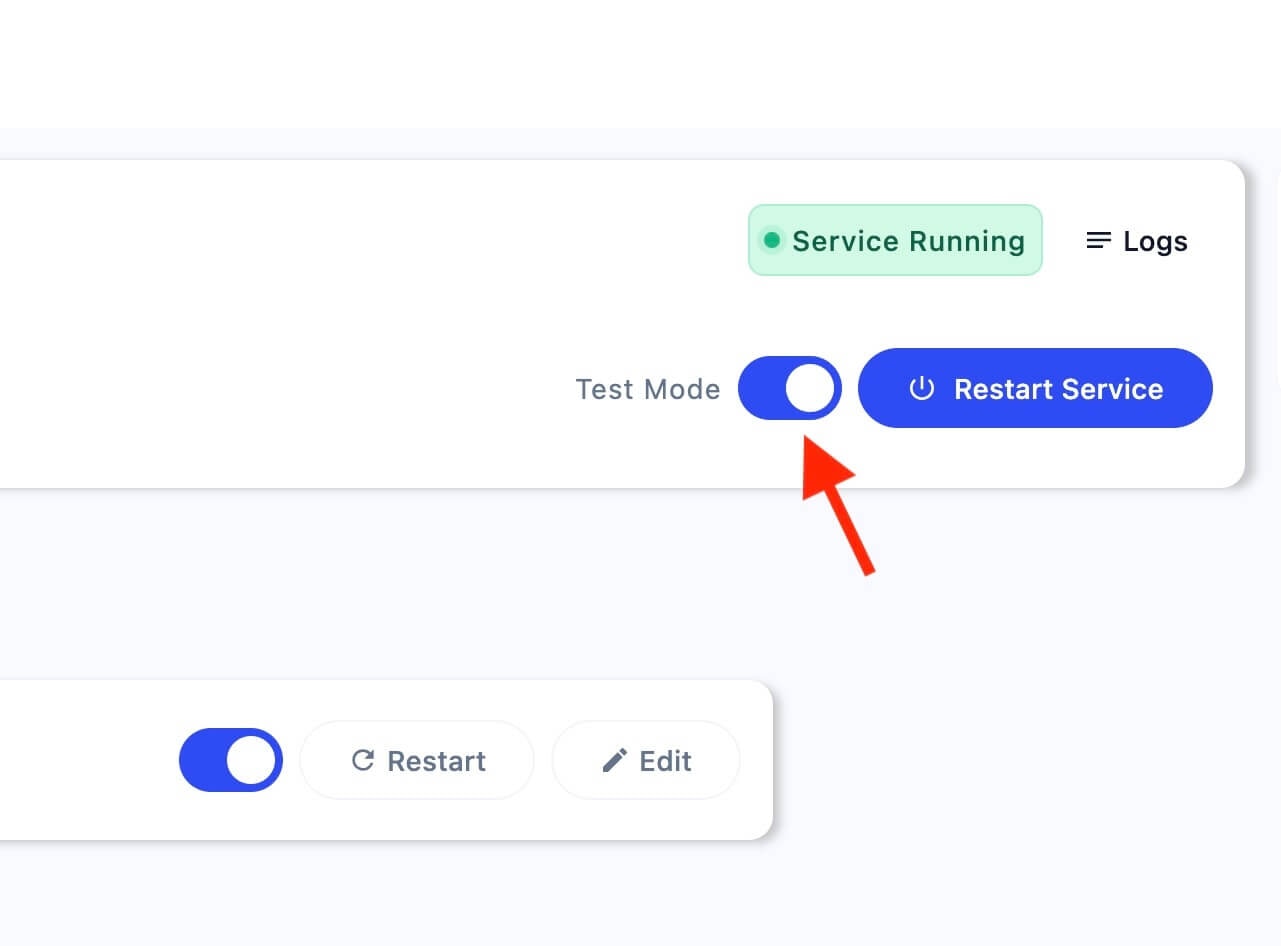
Environment Configuration
Configure the app for different environments based on your development and production needs:- Test Mode (Default)
- Production Mode
Initial Setup
Test Transactions
Transaction Timeout
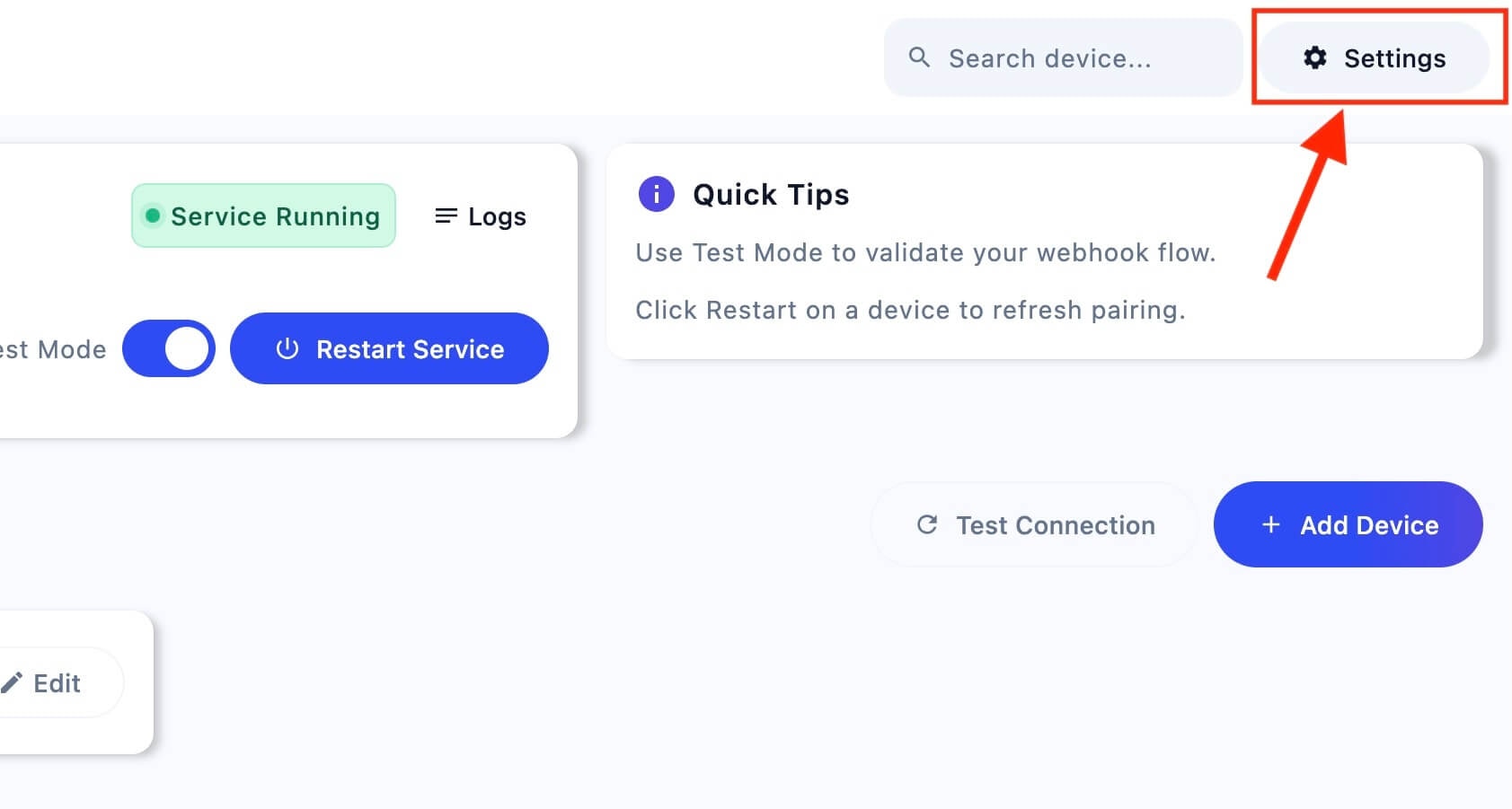
Use transaction timeouts to auto-cancel in the app and reissue transactions when a terminal does not respond in time. You can set independent limits for card and QR flows.Open Settings
Select Transaction Timeout
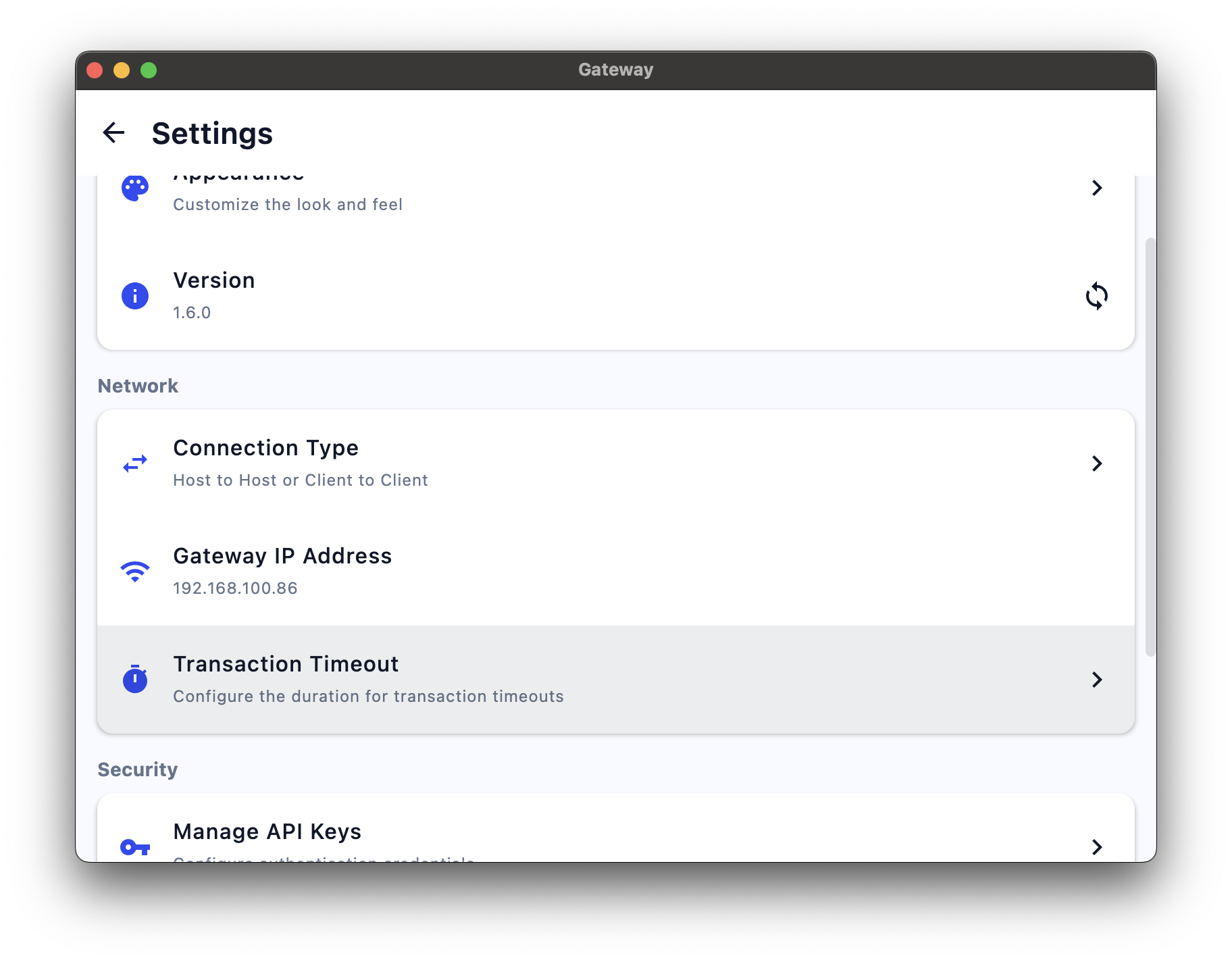
Configure Card and QR timeouts
- Card Timeout (minutes) — maximum time the terminal has to complete a card transaction before the app auto-cancels and retries the transaction.
- QR Timeout (minutes) — maximum time for QR transactions before the app auto-cancels and retries the transaction.
Save changes
Use System Overlay (Android)
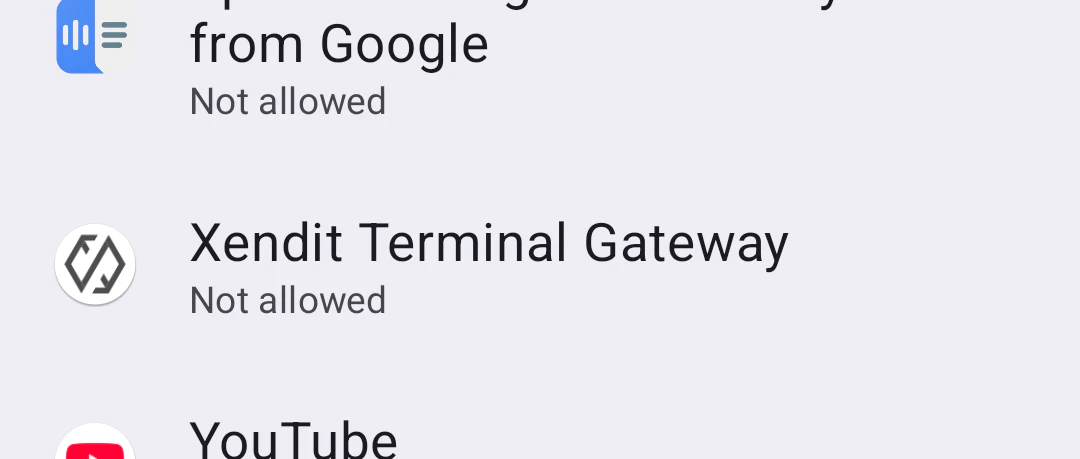
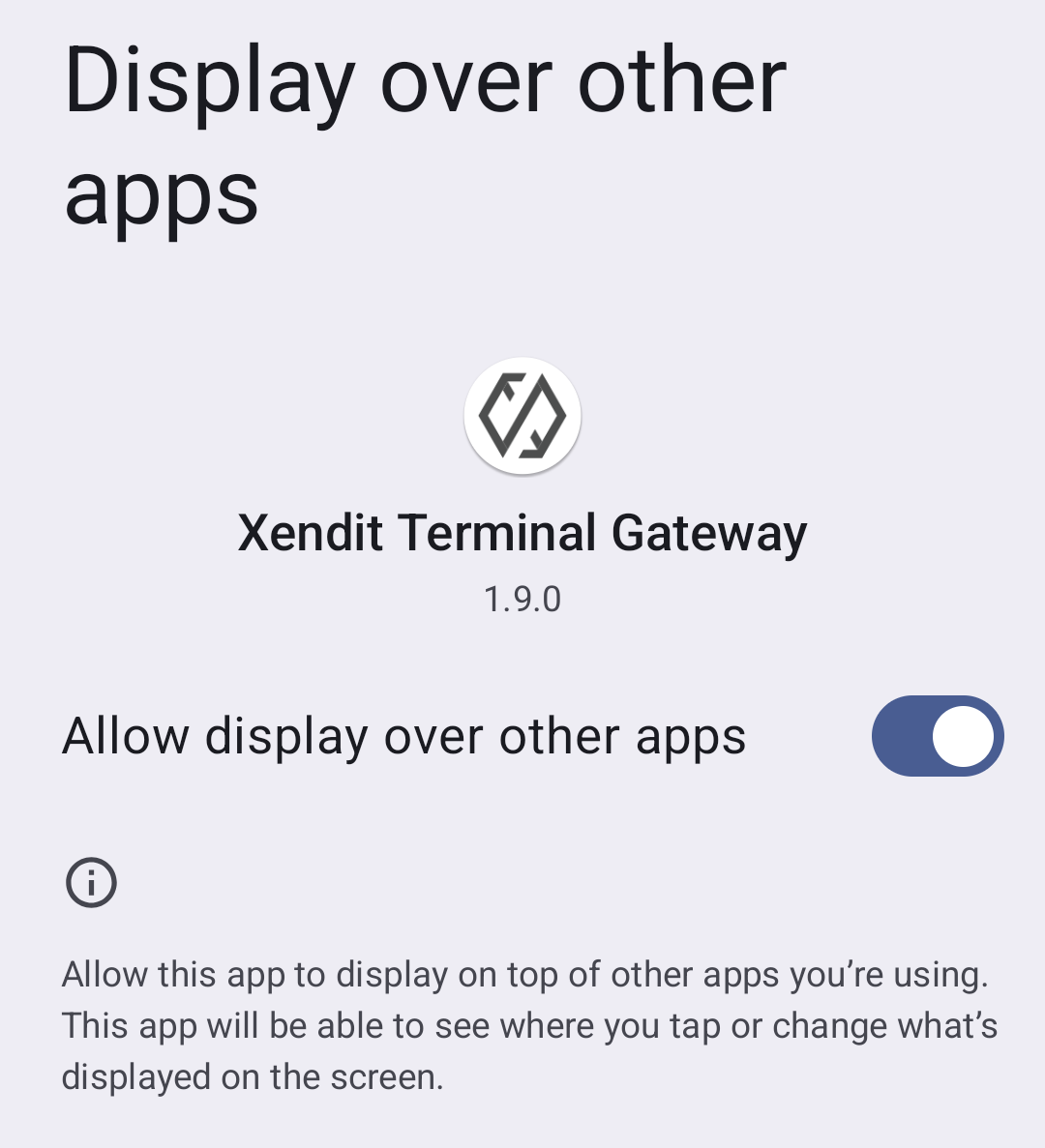
Enable system overlay to display pending transactions as an overlay window instead of a notification. This provides better visibility for ongoing transactions on Android devices.Open Settings and Enable Overlay
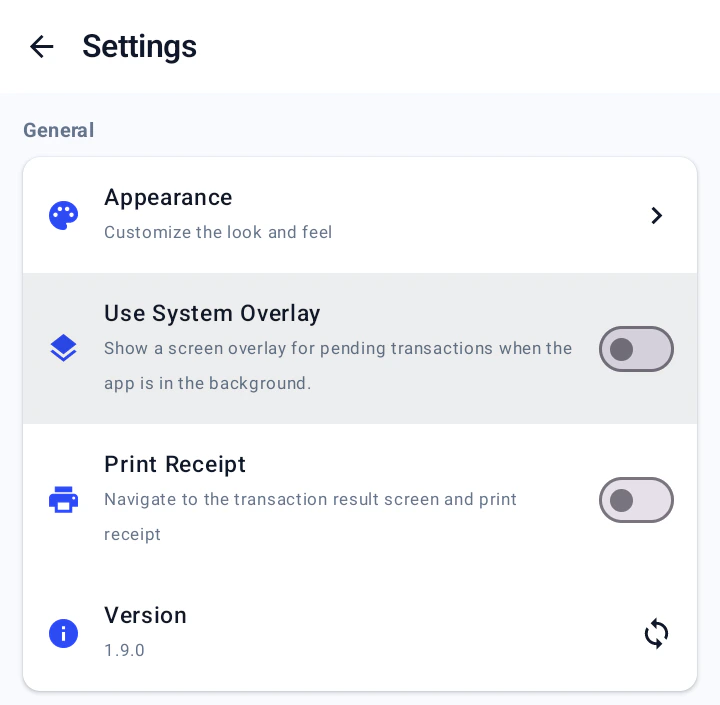
Find Xendit App
Enable Display Over Other Apps
Print Receipt (Cashup Provider)
Control whether the Cashup terminal automatically prints receipts after completing transactions. You can disable receipt printing to reduce paper usage or enable it for customer documentation requirements.Open Settings and Configure Print Receipt
Device Status Monitoring
Each device in the terminal list displays a status indicator that changes color based on its current state. Monitor these indicators to ensure your terminal fleet is operating correctly.Status Indicators
Troubleshooting Status Issues
Red Status - Terminal Unreachable/Offline
Red Status - Terminal Unreachable/Offline
- Verify the terminal IP address is correct and accessible
- Check network connectivity between the app and terminal
- Ensure the terminal is powered on and properly configured
- Verify firewall settings aren’t blocking the connection
Grey Status - Terminal Disabled
Grey Status - Terminal Disabled
- Check if the terminal has been manually disabled in the app
- Verify terminal configuration and settings
- Restart the terminal connection if needed
-
Contact support if the issue persists
Disabled terminals are intentionally unavailable and won’t process transactions.
Yellow Status - Terminal Processing
Yellow Status - Terminal Processing
- Verify the terminal and POS are properly connected to the network
- Check if the current transaction is still awaiting card input or PIN
- Confirm whether the POS has already received a callback/response
- Review app logs for timeouts or error messages during processing
Green Status - Terminal Online
Green Status - Terminal Online
- The device is connected and reachable by the app
- No transaction is currently in progress
- The terminal can accept new commands
- Confirm the POS is sending commands to the correct terminal
- Verify API credentials and environment (test vs production)
-
Check recent logs for command errors or rejected requests
Green status indicates the terminal is healthy and ready to use.
Troubleshooting
Common Issues and Solutions
Unresponsive EDC Machine
Unresponsive EDC Machine
- Restart the EDC machine by holding the power button and selecting “Restart”
- Wait for the device to fully boot up and reconnect
- Verify the terminal is back online using the connection monitoring features
Kiosk Mode Configuration
Kiosk Mode Configuration
- Ensure all transactions are initiated only through the app
- Contact the Xendit EDC team to enable POS-only mode for your Terminal IDs
- Configure terminal settings to disable manual transaction entry
No Response After Payment Completion
No Response After Payment Completion
- Query the Payment Session using the Terminal API to retrieve the latest status
- Check network connectivity between the EDC and your application
- Verify the callback URL configuration in your payment session
- Implement retry logic for failed status updates
Transaction Stuck or Missing Callback After Receipt Printed
Transaction Stuck or Missing Callback After Receipt Printed
/v1/terminal/sessions/{id}/retry to request the app check the transaction status and redo the transaction if it’s incomplete.Connection Issues
Connection Issues
- Check network connectivity: Ensure both devices are on the same network
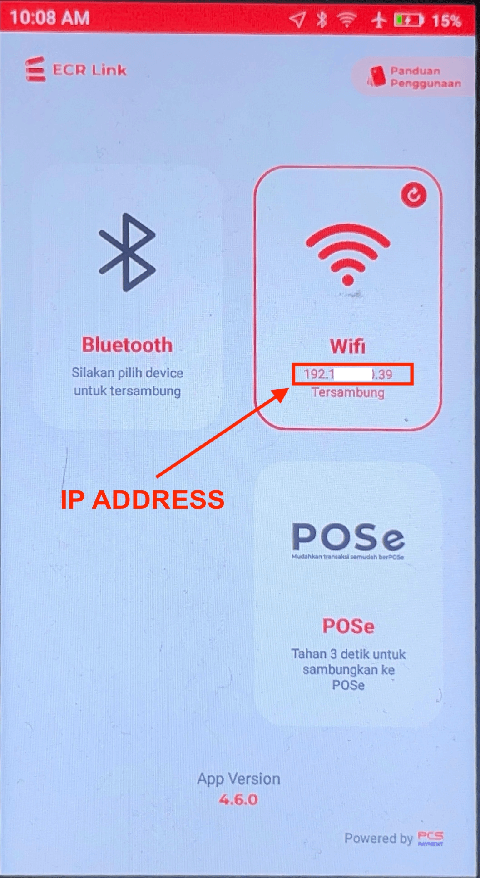
- Verify IP addresses: Confirm terminal IP addresses are correct and accessible
- Firewall settings: Check if firewall is blocking the connection ports
- Terminal status: Ensure the terminal is powered on and in ready state
- App initialization: Verify client key and terminal configuration
Finding Terminal Information
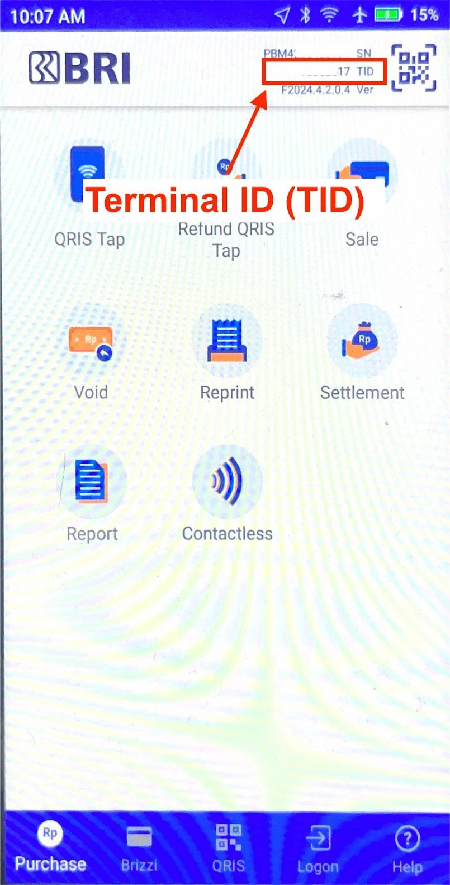
- BRI Terminals
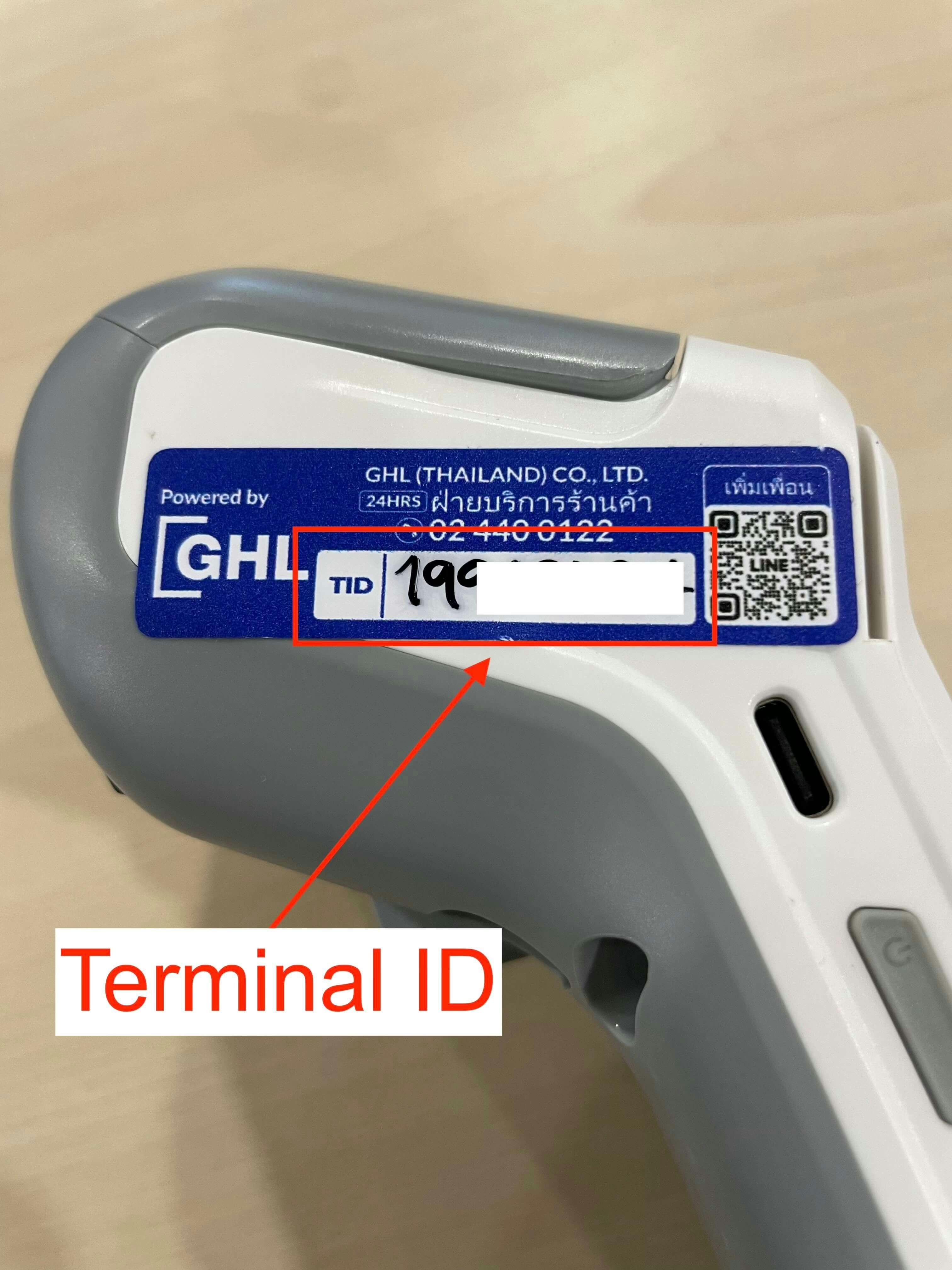
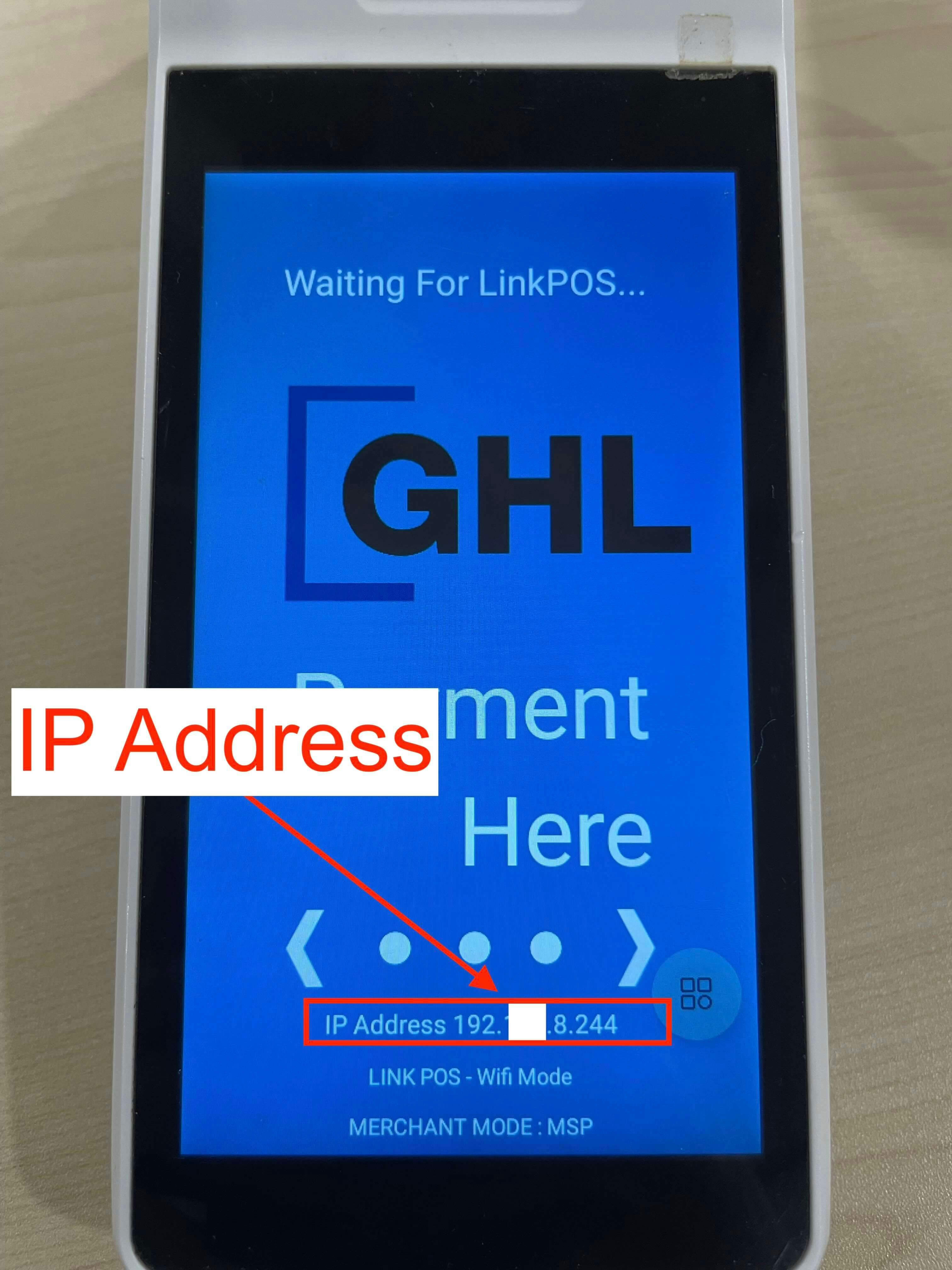
- NTT Terminals
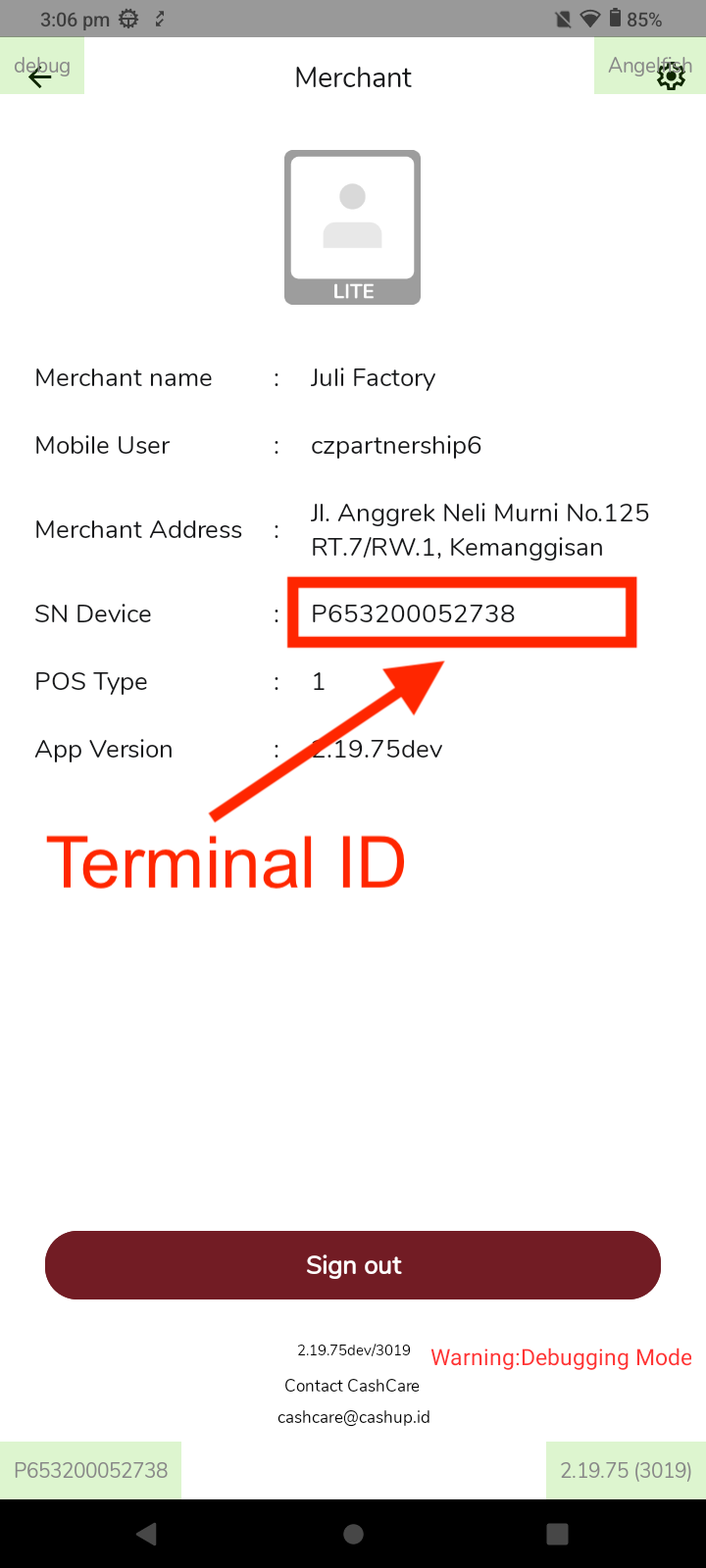
- Cashup Terminals
- Atom Terminals
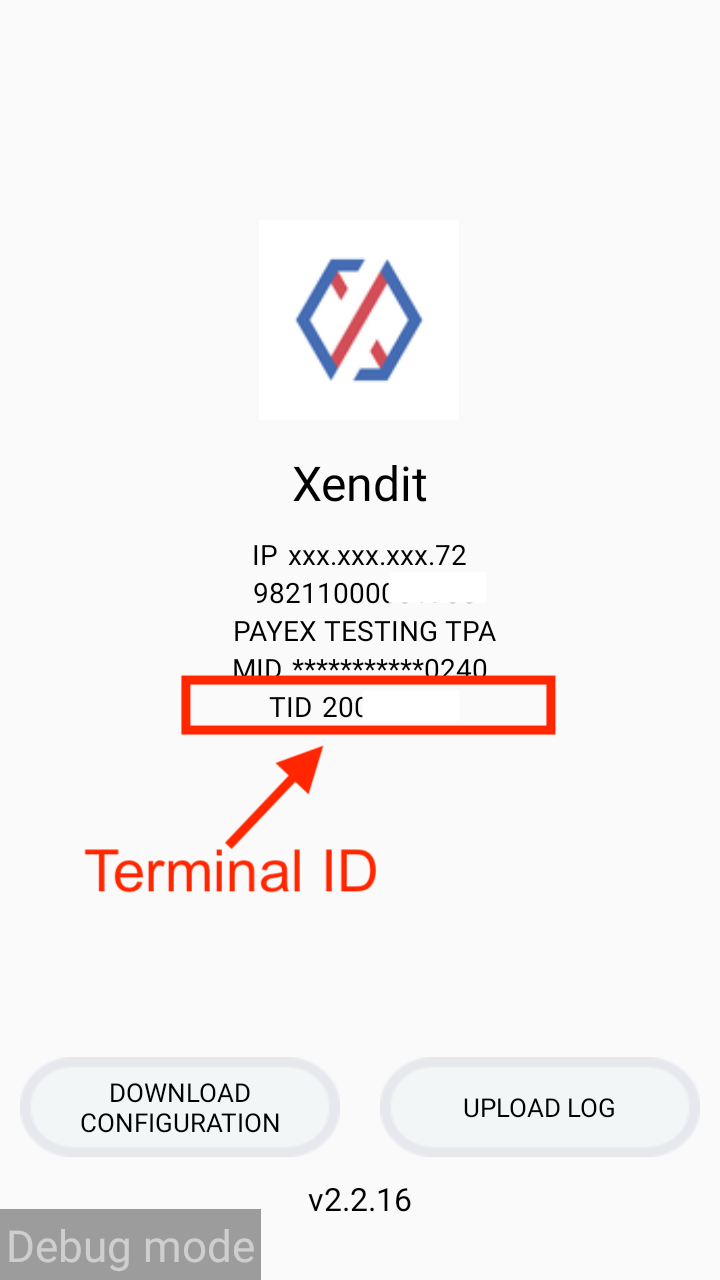
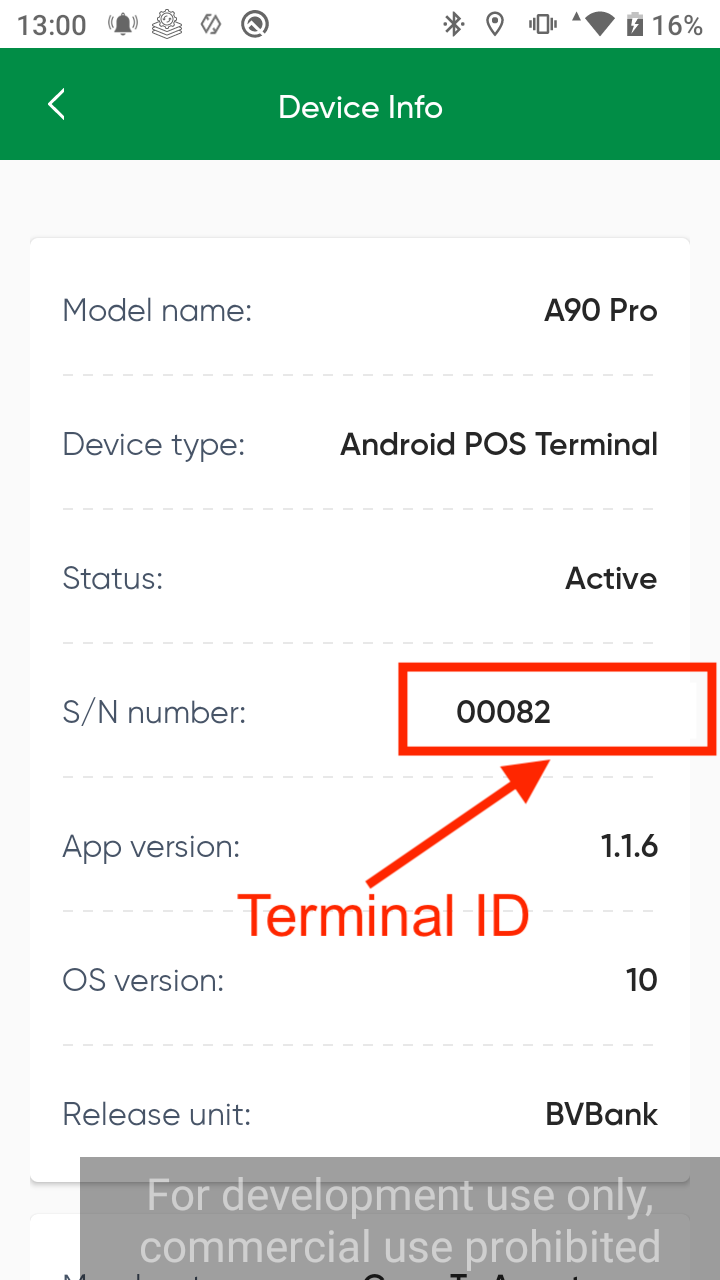
Find Terminal ID (TID)
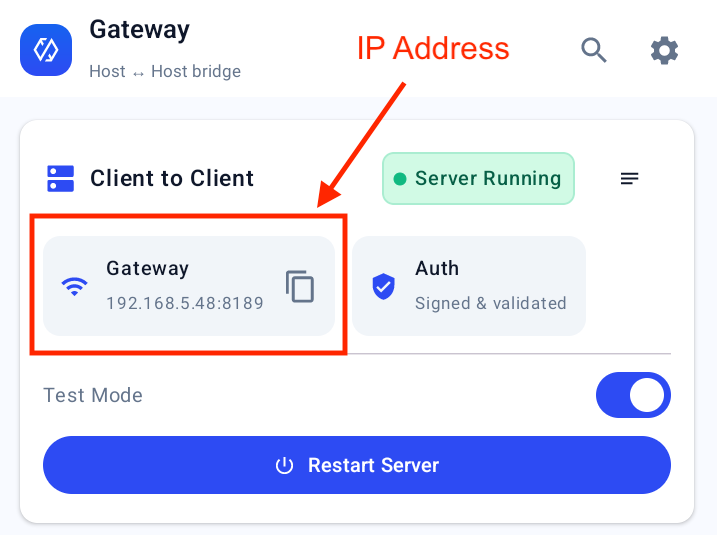
Find IP Address