


Terminal Gateway SDK for Android (Kotlin)
The Xendit’s Payment Terminal Gateway Android SDK enables you to integrate secure payment processing into your Android applications. Connect to physical payment terminals and process transactions seamlessly using our Kotlin-based SDK.This SDK works alongside the Terminal API to provide complete in-person payment functionality. You’ll use the Terminal API to create payment sessions and this SDK to interact with physical payment devices.
Version information
v0.7.0 — 5-Dec-2025
v0.7.0 — 5-Dec-2025
What’s new:
- Fixed NTT payment method value mapping to ensure correct provider selection
- Updated BRI payment flow to validate transaction data before executing terminal actions
- Added timeout configuration for card and QR transactions to auto-cancel and retry stalled requests
- Added support to handle retry requests via
/v1/terminal/sessions/{id}/retryendpoint
v0.6.0 — 20-Nov-2025
v0.6.0 — 20-Nov-2025
What’s new:
- Added support for multiple concurrent device connections, enabling simultaneous transactions across different terminals
- [BRI] Fixed status value handling in void and cancel API responses for improved transaction status accuracy
v0.5.0 — 30-Oct-2025
v0.5.0 — 30-Oct-2025
What’s new:
- Introduced command ID handling for settlement operations
- Enhanced retry logic with configurable attempt counts
- Improved error handling and logging throughout the gateway service
v0.4.1 — 7-Oct-2025
v0.4.1 — 7-Oct-2025
Bug fixes and improvements:
- Fix data mapping for terminal responses
- [BRI] Enhanced status verification after transaction timeout for improved reliability
v0.4.0 — 13-May-2025
v0.4.0 — 13-May-2025
XenTerminal is the companion SDK to In-Person Payment Sessions API. This version provides core functionality for connecting to payment terminals and processing transactions.
The SDK follows semantic versioning. Breaking changes will bump the major version number.
Download
Download the Terminal Gateway Android SDK:Installation
Follow these steps to add the Terminal Gateway Android SDK to your project.1
Extract the SDK
Extract the provided SDK zip file so that a
repository directory is available in your project root.Verify that the
repository folder contains the necessary Maven artifacts for the SDK.2
Configure Gradle settings
Add the repository to your Gradle configuration. Choose one of the following approaches:
- Modern Approach (Recommended)
- Old Android Project
Add the repository to your Gradle settings file:
3
Add dependencies
Add the required dependencies to your app module’s
build.gradle file:Getting Started
Before you begin, ensure you have the following:- Client key: Request an In-Person Payment
CLIENT_KEYfrom the Xendit team - Terminal device information: Obtain the Terminal ID and IP address for each device
- Android project: Set up with minimum SDK version 21 (Android 5.0)
Step 1: Initialize the SDK
Initialize the Terminal Gateway SDK in your Application class:MyApp.kt
Use
TerminalMode.INTEGRATION for development and testing. Switch to TerminalMode.LIVE for production with a live client key.Step 2: Register Terminal Devices
Register your terminal devices with the SDK:After successful registration, your terminal devices will be available for payment processing.
Configuration and Management
Set Operation Timeout
Configure the timeout for terminal operations:The default timeout is 5 minutes. Use the type-specific methods to override card vs QR timeouts when needed.
Restart Terminal Connection
Manage and restart terminal service connections:- Restart All Connections
- Restart Single Connection
Call the method without parameters to restart all connections and tasks:
Monitor Connection State
Observe terminal connection states in real-time:- Using Coroutine Scope
- Using Flow
Use the
observeConnection method with a coroutine scope:Connection States
| State | Description |
|---|---|
| CONNECTED | Device successfully connected to terminal and ready for transactions |
| DISCONNECTED | Device disconnected from terminal or network unavailable |
| UNKNOWN | Initial state before any connection attempt |
| CONNECTING | Currently establishing connection to terminal |
| CONNECTING_FAILED | Connection attempt failed due to network or authentication issues |
| UNSUPPORTED | Terminal type or connection method not supported |
Monitor Error States
Observe and handle errors across all terminal devices:Error Handling
Error Data Structure
All errors returned by the Terminal Gateway SDK follow this structure:Error Codes Reference
| Error Code | HTTP Status | Description |
|---|---|---|
| INVALID_CREDENTIAL | 401 | Provided credentials are invalid or expired |
| INVALID_REQUEST | 400 | Request format or parameters are invalid |
| INTERNAL_SERVER_ERROR | 500 | Server-side error occurred during processing |
| UNKNOWN_ERROR | 0 | Unexpected error that doesn’t fit other categories |
| KEY_INVALID | -1 | API key is invalid or not authorized |
| SEND_FAILED | -2 | Failed to send data to the terminal device |
| NOT_CONNECTED | -3 | No active connection to any terminal device |
| FAILED_TO_CONNECT | -4 | Unable to establish connection to terminal |
| UNSUPPORTED | -5 | Operation or platform not supported |
| TERMINAL_BUSY | -6 | Terminal is processing another transaction |
| ENCRYPTION_FAILED | -7 | Encryption key invalid or encryption process failed |
| AUTHENTICATION_FAILED | -21 | Terminal authentication failed - check TID and credentials |
Error Handling Best Practices
Implement comprehensive error handling for robust payment processing:Troubleshooting
Common Issues and Solutions
Unresponsive EDC Machine
Unresponsive EDC Machine
Problem: The EDC (Electronic Data Capture) machine becomes unresponsive or stops processing transactions.Solution:
- Restart the EDC machine by holding the power button and selecting “Restart”
- Wait for the device to fully boot up and reconnect
- Verify the terminal is back online using the connection monitoring features
Kiosk Mode Configuration
Kiosk Mode Configuration
Problem: Unexpected behaviors or unauthorized access to terminal functions.Solution:
- Ensure all transactions are initiated only through the SDK
- Contact the Xendit EDC team to enable POS-only mode for your Terminal IDs
- Configure terminal settings to disable manual transaction entry
No Response After Payment Completion
No Response After Payment Completion
Problem: EDC fails to send transaction results to the SDK after payment completion.Solution:
- Query the Payment Session using the Terminal API to retrieve the latest status
- Check network connectivity between the EDC and your application
- Verify the callback URL configuration in your payment session
- Implement retry logic for failed status updates
Transaction Stuck or Missing Callback After Receipt Printed
Transaction Stuck or Missing Callback After Receipt Printed
Problem: Transaction appears stuck or you don’t receive a callback after the terminal prints a receipt, indicating the transaction may be incomplete.Solution:
Call the Terminal API retry endpoint to request the app check the transaction status and redo the transaction if it’s incomplete:
This troubleshooting section applies only to BRI terminals.
The retry endpoint
/v1/terminal/sessions/{id}/retry instructs the app to verify the current transaction status with the terminal and automatically redo the transaction if it’s found to be incomplete.Connection Issues
Connection Issues
Problem: Unable to establish or maintain connection with terminal devices.Solutions:
- Check network connectivity: Ensure both devices are on the same network
- Verify IP addresses: Confirm terminal IP addresses are correct and accessible
- Firewall settings: Check if firewall is blocking the connection ports
- Terminal status: Ensure the terminal is powered on and in ready state
- SDK initialization: Verify client key and terminal configuration
Use the connection monitoring features to diagnose specific connection issues.
Finding Terminal Information
- BRI Terminals
- NTT Terminals
1
Find Terminal ID (TID)
Open the BRI FMS app on the terminal device and locate the Terminal ID in the device information section.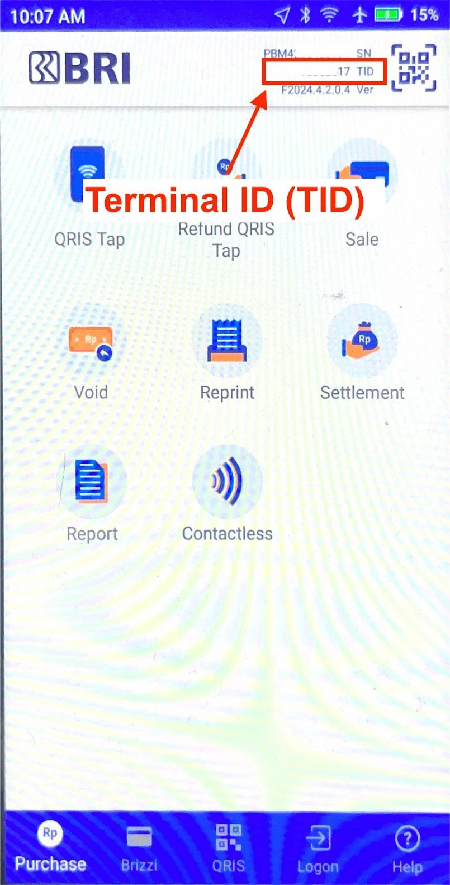
2
Find IP Address
Open the ECRLink app on the terminal and check the network settings for the IP address.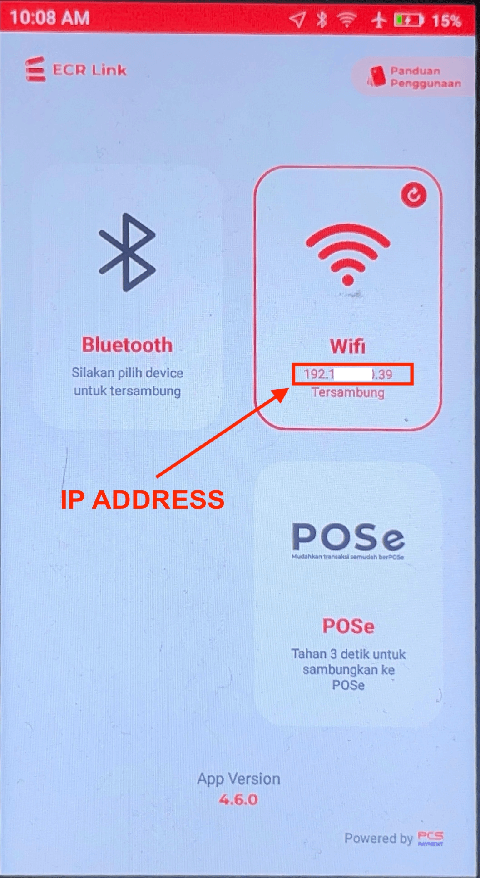
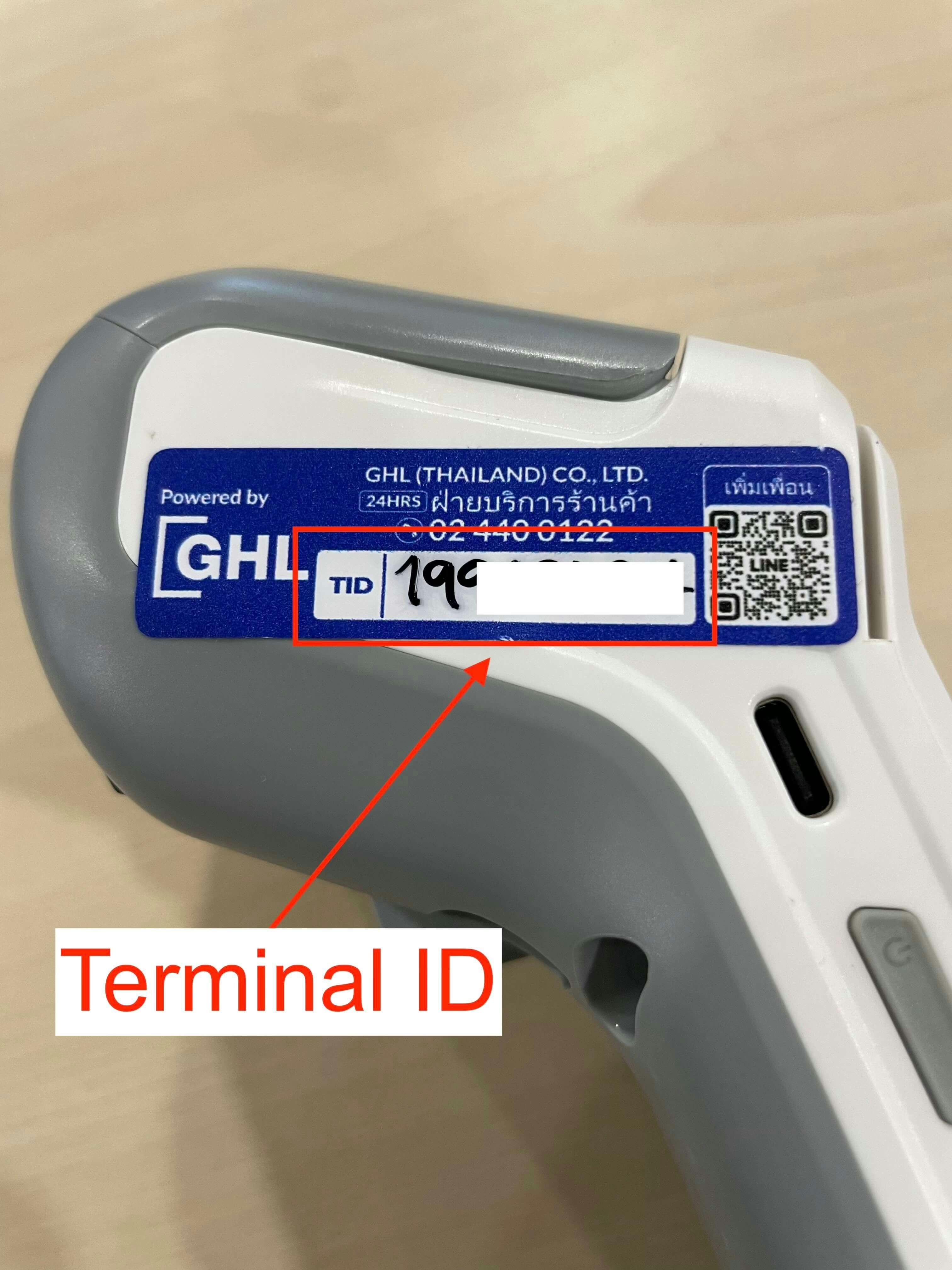
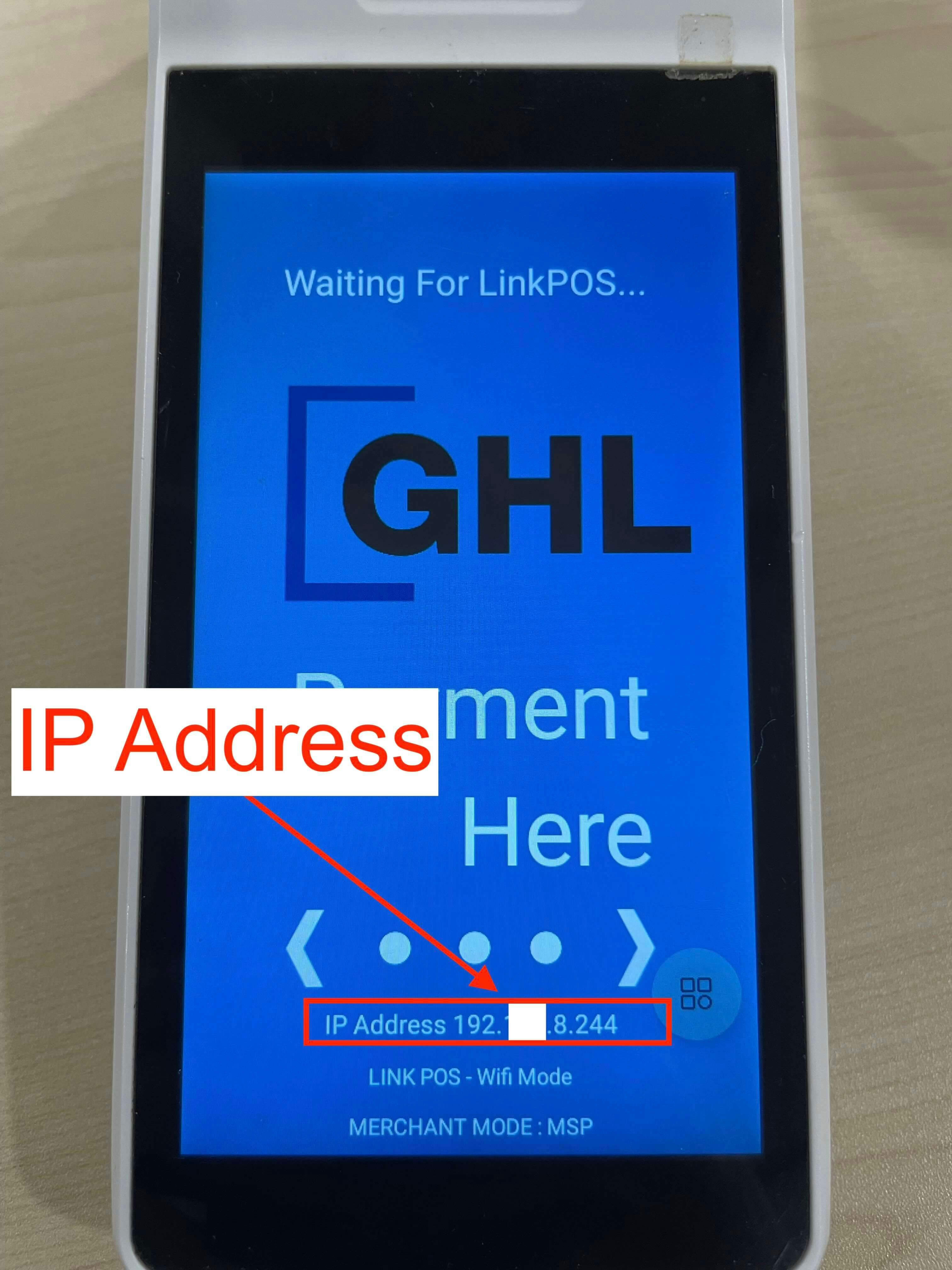
Screenshots and UI layouts may vary by firmware or app version. Refer to the latest vendor documentation if the interface differs from these instructions.