


Terminal Gateway App Configuration
The Terminal Gateway app helps developers integrate their application with Xendit supported terminal devices. Configure connection types, manage devices, and monitor terminal status through an intuitive interface.This app works alongside the Terminal API to provide complete in-person
payment functionality. You’ll use the Terminal API to create payment sessions
and this app to manage terminal device connections.
Version information
v1.6.0 — 5-Dec-2025
v1.6.0 — 5-Dec-2025
What’s new:
- Fixed the NTT payment method value to ensure correct provider mapping
- Updated the BRI payment flow to validate transaction data before performing terminal actions
- Added timeout configuration for card and QR transactions to control operation windows
- Added support to handle retry requests via
/v1/terminal/sessions/{id}/retryendpoint
v1.5.0 — 20-Nov-2025
v1.5.0 — 20-Nov-2025
What’s new:
- Added support for multiple concurrent device connections so you can orchestrate simultaneous sessions across different terminals
- [BRI] Fixed status value handling in void and cancel API responses for improved transaction status accuracy
- Enhanced the Android app lifecycle with a splash screen, notification handling, and provider app launcher support for a smoother user experience
- Fixed client-to-client API calls and the associated request queue to prevent stalled commands
v1.4.0 — 30-Oct-2025
v1.4.0 — 30-Oct-2025
New features and improvements:
- Added transaction timeout configuration with UI support and validation
- Introduced command ID handling for settlement operations
- Enhanced retry logic with configurable attempt counts
- Improved error handling and logging throughout the gateway service
- In-app version update
- Renamed to Gateway with updated icons
v1.3.2 — 7-Oct-2025
v1.3.2 — 7-Oct-2025
Bug fixes and improvements:
- Fix data mapping for terminal responses
- Hide device’s restart button when connection mode is C2C
- Fix “restart service” button behavior on C2C mode
- [BRI] Enhanced status verification after transaction timeout for improved reliability
v1.3.1 — 26-Sep-2025
v1.3.1 — 26-Sep-2025
Bug fixes and improvements:
- Fix UI issue
- Fix date time parser issue
- Fix test flag toggle not showing correct state on app open
v1.3.0 — 11-Sep-2025
v1.3.0 — 11-Sep-2025
Update UI/UX for improved user experience and interface design.
v1.2.1 — 27-Aug-2025
v1.2.1 — 27-Aug-2025
Remove timezone pinning for the BRI terminal. Fix an issue where the app
executes the same command after a transaction completes.
v1.2.0 — 7-June-2025
v1.2.0 — 7-June-2025
Terminal Gateway is the companion SDK to In-Person Payments Terminal API.
The app follows semantic versioning. Breaking changes will bump the major
version number.
Download the app
Choose your operating system to download the Terminal Gateway app installer:macOS (.dmg)
Download the macOS installer (v1.6.0)
Windows (.msi)
Download the Windows installer (v1.6.0)
Android (.apk)
Download the Android APK (v1.6.0)
Getting Started
Before starting, you’ll need a terminal CLIENT_KEY from the Xendit In-Person Payments team and add a device.1
Enter Client Key
When the app opens for the first time, a modal will appear. Enter your testing CLIENT_KEY in the “Test API Key” field and click “Save”.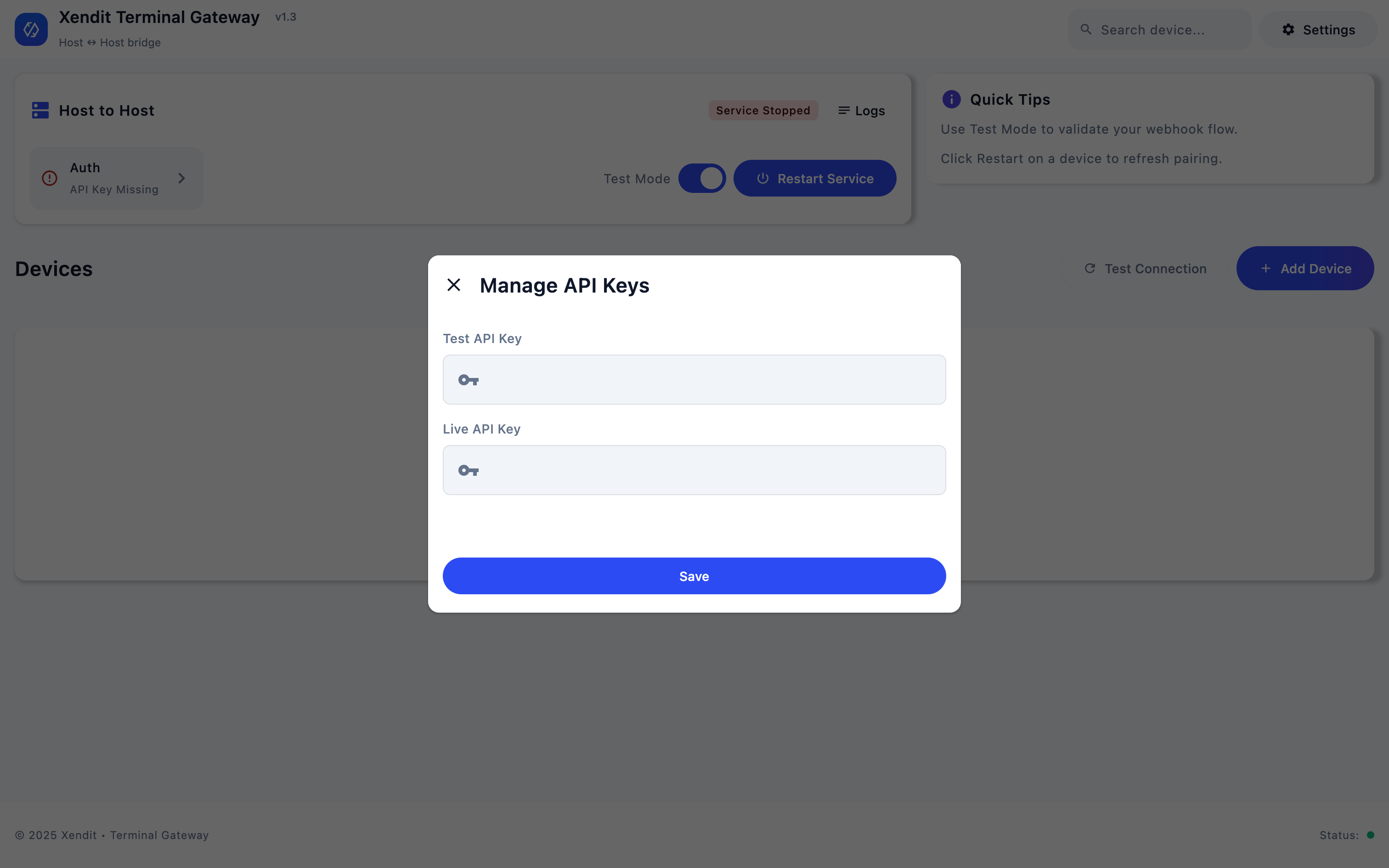
2
Add Your First Device
Click ”+ Add Your First Device” to link a terminal device.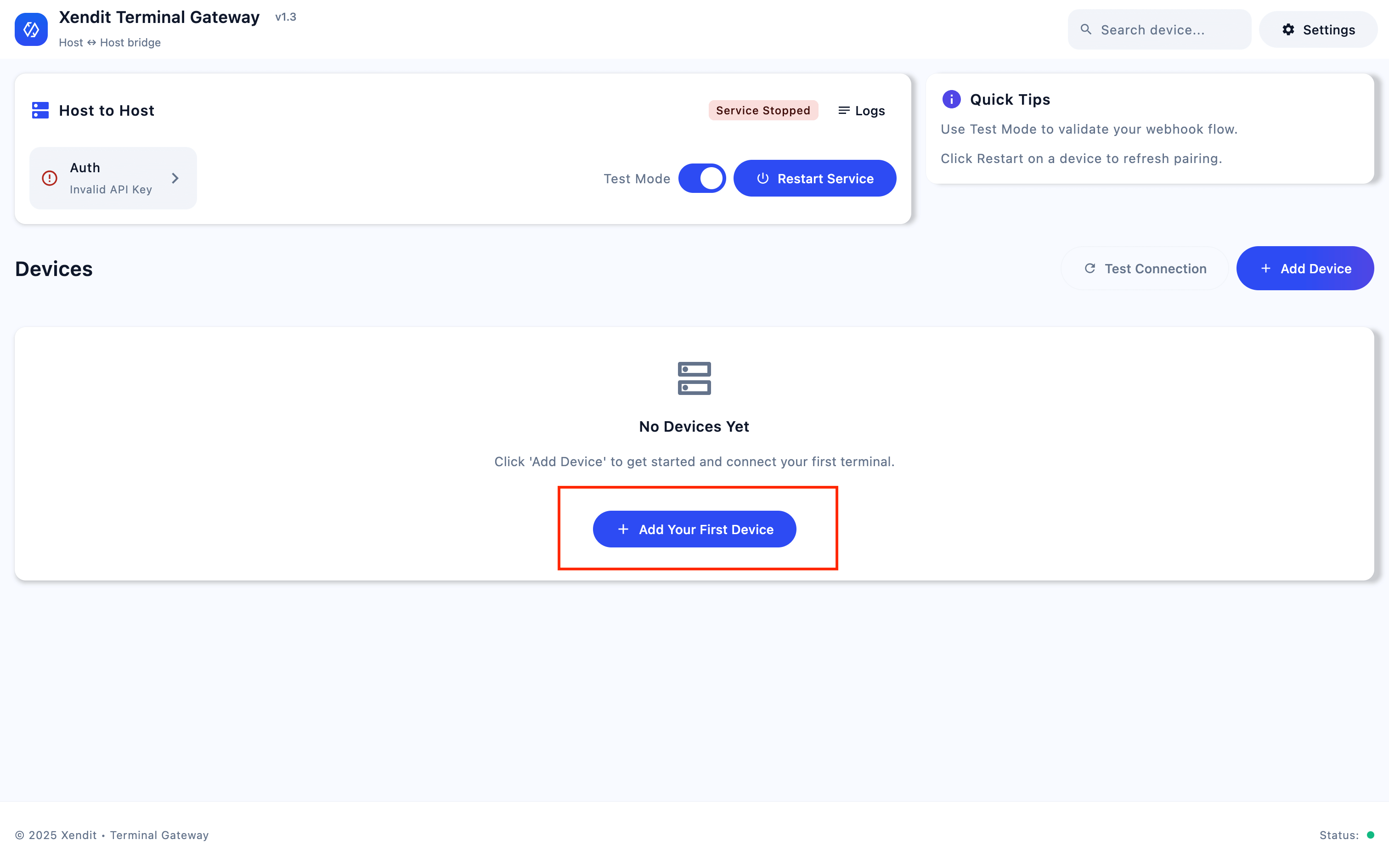
3
Configure Device
Fill in Terminal ID and IP Address, and click “Add Device” button.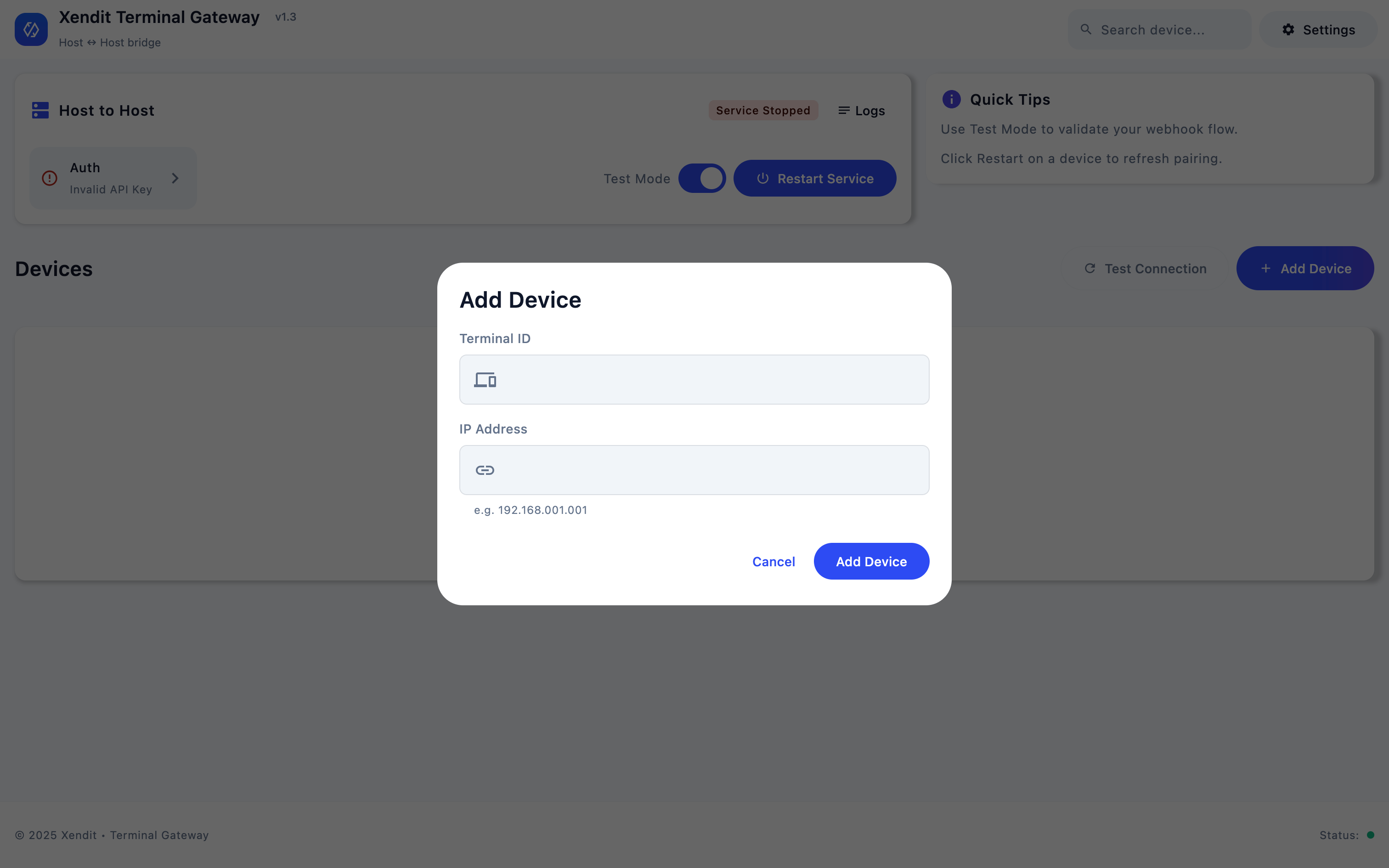
4
Test Connection
The app will test the connection with the added device and run the service. The app is now accepting commands.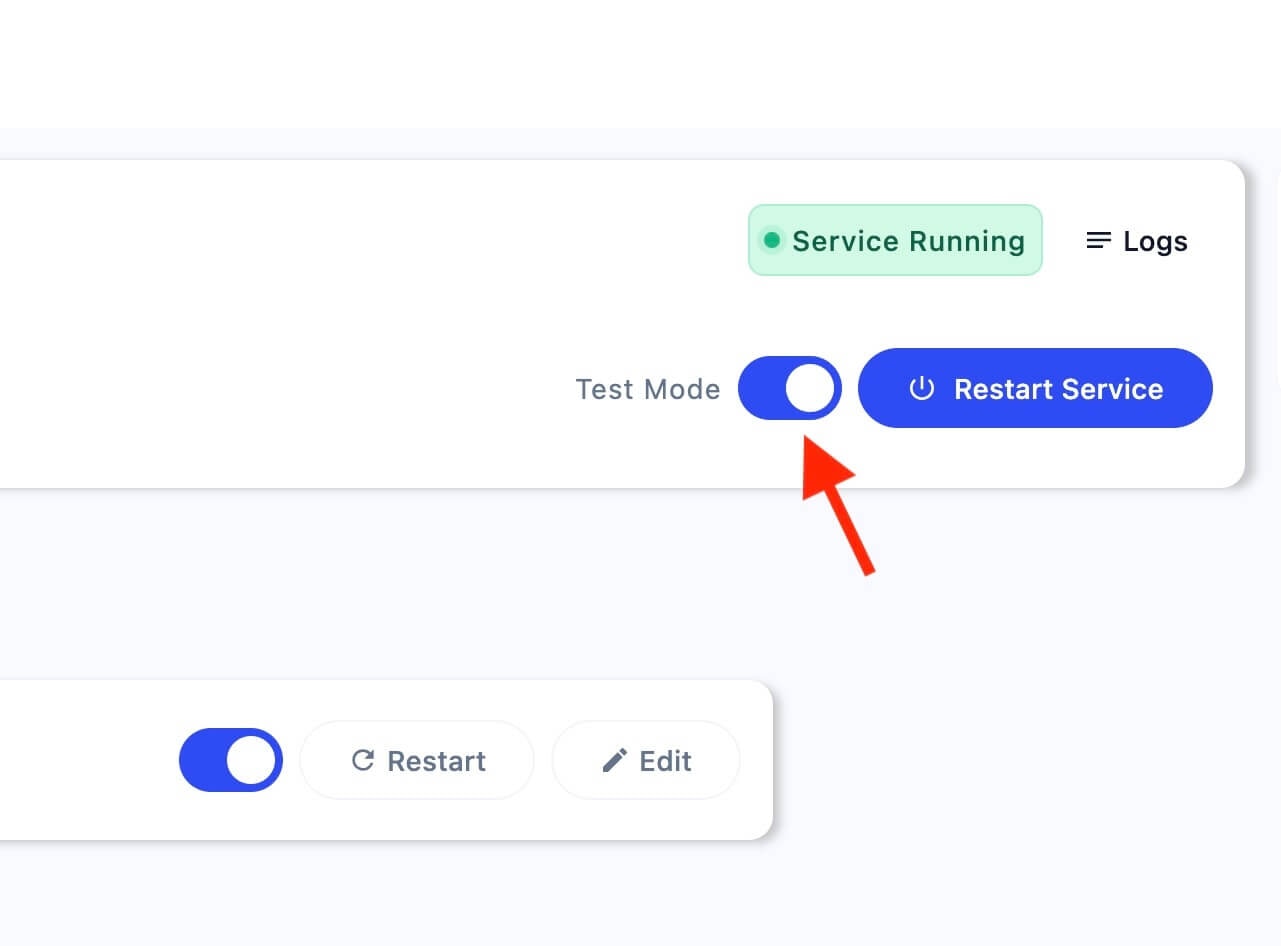
Your Terminal Gateway app is now ready to accept commands from your POS system.
Connection Types
The Terminal Gateway app supports two connection modes for different integration scenarios:- Host-to-Host (Default)
- Client-to-Client
Recommended for most use cases - The app runs a host-to-host service that manages your terminal fleet centrally.
1
Default Configuration
The app automatically runs in host-to-host mode when first launched.
2
Manage Terminals
Add and manage multiple terminal devices through the app interface.
3
Centralized Control
All terminal communications are handled through the app’s centralized
service.
Environment Configuration
Configure the app for different environments based on your development and production needs:- Test Mode (Default)
- Production Mode
For development and testing - Use test client keys and sandbox environment.
1
Initial Setup
When the app opens for the first time, enter your testing CLIENT_KEY in the
“Test API Key” field.
2
Test Transactions
All transactions are processed in test mode and won’t affect real payment
data.
Test mode is enabled by default and uses the test environment for all transactions.
Transaction Timeout
Use transaction timeouts to auto-cancel in the app and reissue transactions when a terminal does not respond in time. You can set independent limits for card and QR flows.1
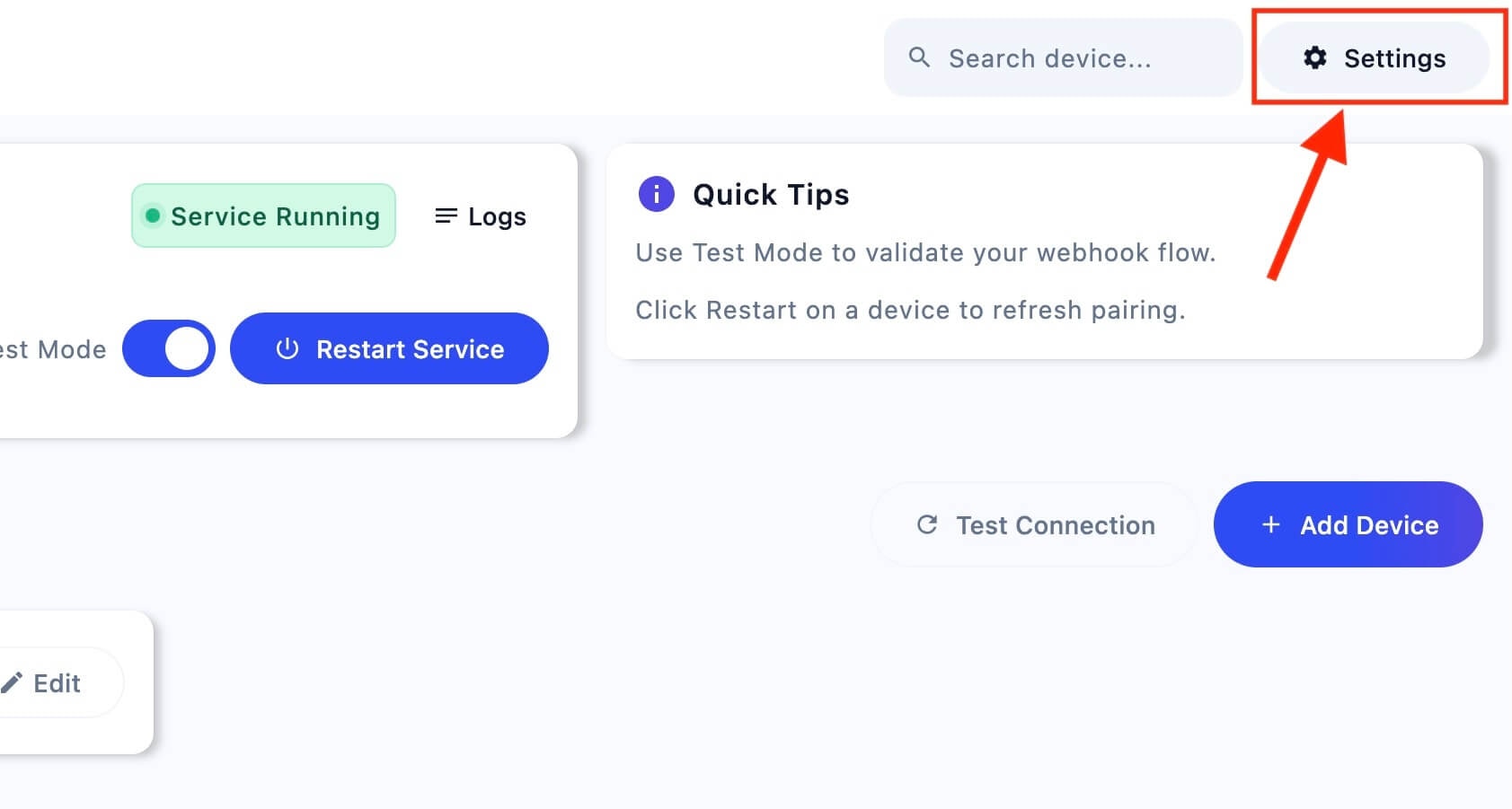
Open Settings
Click the settings icon in the top-right corner of the app home screen.
2
Select Transaction Timeout
In Settings, choose Transaction Timeout under the Network section.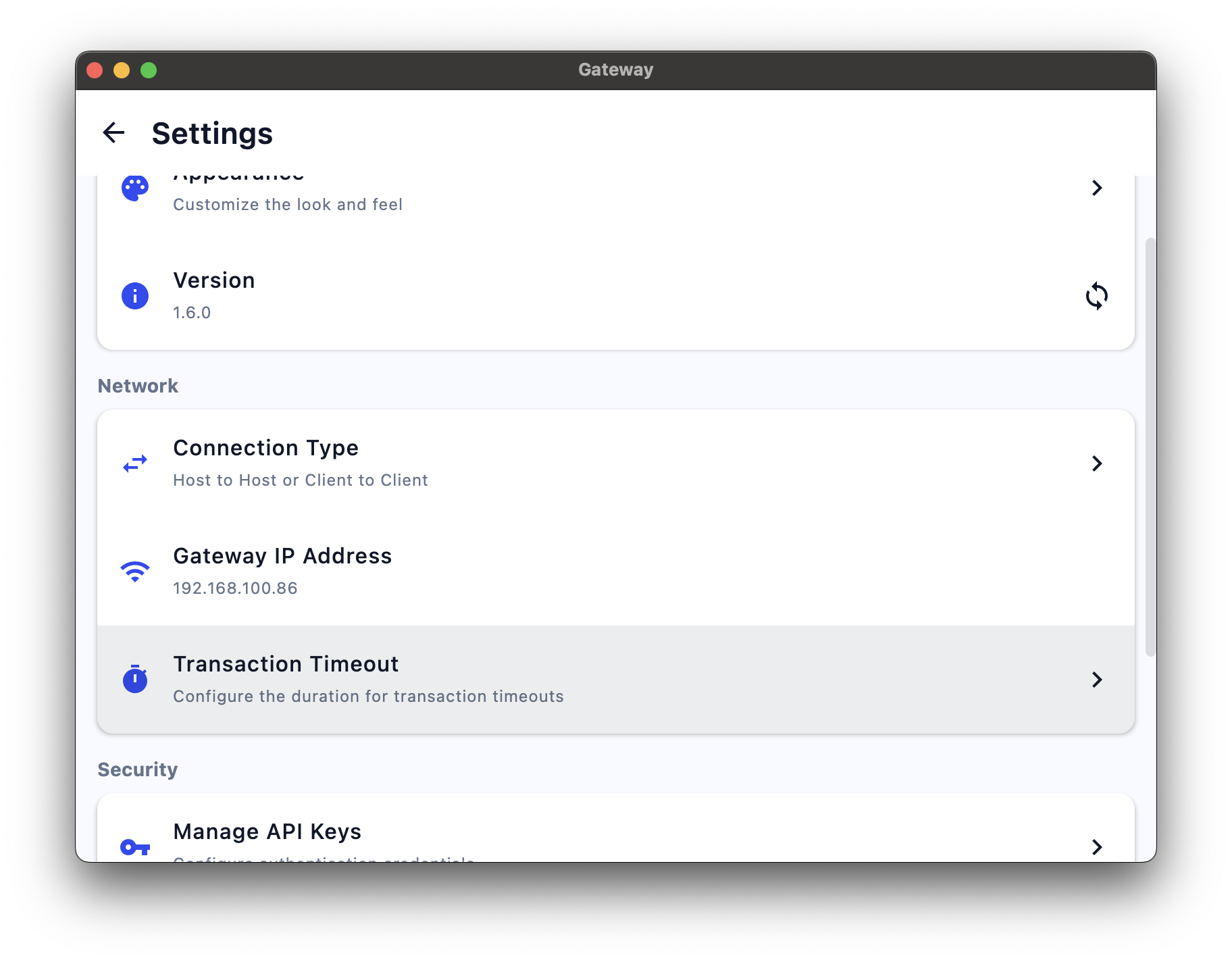
3
Configure Card and QR timeouts
- Card Timeout (minutes) — maximum time the terminal has to complete a card transaction before the app auto-cancels and retries the transaction.
- QR Timeout (minutes) — maximum time for QR transactions before the app auto-cancels and retries the transaction.
4
Save changes
Click Save Changes to apply the new timeouts.
Device Status Monitoring
Each device in the terminal list displays a status indicator that changes color based on its current state. Monitor these indicators to ensure your terminal fleet is operating correctly.Status Indicators
| Status | Color | Description |
|---|---|---|
| Unreachable/Offline | Red | EDC terminal is unreachable or offline due to incorrect IP address, network issues, or missing EDC configuration |
| Processing | Yellow | A transaction is currently in progress on the EDC terminal |
| Online | Green | EDC terminal is online, connected, and ready for transactions |
| Disabled | Grey | EDC terminal is disabled and not available for transactions |
Troubleshooting Status Issues
Red Status - Terminal Unreachable/Offline
Red Status - Terminal Unreachable/Offline
Problem: Terminal shows red status indicating it cannot be reached or is offline.Solutions:
- Verify the terminal IP address is correct and accessible
- Check network connectivity between the app and terminal
- Ensure the terminal is powered on and properly configured
- Verify firewall settings aren’t blocking the connection
Grey Status - Terminal Disabled
Grey Status - Terminal Disabled
Problem: Terminal shows grey status indicating it’s disabled.Solutions:
- Check if the terminal has been manually disabled in the app
- Verify terminal configuration and settings
- Restart the terminal connection if needed
-
Contact support if the issue persists
Disabled terminals are intentionally unavailable and won’t process transactions.
Yellow Status - Terminal Processing
Yellow Status - Terminal Processing
Problem: Terminal shows yellow status indicating a transaction is in progress or appears stuck.Solutions:
- Verify the terminal and POS are properly connected to the network
- Check if the current transaction is still awaiting card input or PIN
- Confirm whether the POS has already received a callback/response
- Review app logs for timeouts or error messages during processing
Green Status - Terminal Online
Green Status - Terminal Online
Context: Terminal shows green status indicating it is online and ready.What this means:
- The device is connected and reachable by the app
- No transaction is currently in progress
- The terminal can accept new commands
- Confirm the POS is sending commands to the correct terminal
- Verify API credentials and environment (test vs production)
-
Check recent logs for command errors or rejected requests
Green status indicates the terminal is healthy and ready to use.
Troubleshooting
Common Issues and Solutions
Unresponsive EDC Machine
Unresponsive EDC Machine
Problem: The EDC (Electronic Data Capture) machine becomes unresponsive or stops processing transactions.Solution:
- Restart the EDC machine by holding the power button and selecting “Restart”
- Wait for the device to fully boot up and reconnect
- Verify the terminal is back online using the connection monitoring features
Kiosk Mode Configuration
Kiosk Mode Configuration
Problem: Unexpected behaviors or unauthorized access to terminal functions.Solution:
- Ensure all transactions are initiated only through the app
- Contact the Xendit EDC team to enable POS-only mode for your Terminal IDs
- Configure terminal settings to disable manual transaction entry
No Response After Payment Completion
No Response After Payment Completion
Problem: EDC fails to send transaction results to the app after payment completion.Solution:
- Query the Payment Session using the Terminal API to retrieve the latest status
- Check network connectivity between the EDC and your application
- Verify the callback URL configuration in your payment session
- Implement retry logic for failed status updates
Transaction Stuck or Missing Callback After Receipt Printed
Transaction Stuck or Missing Callback After Receipt Printed
Problem: Transaction appears stuck or you don’t receive a callback after the terminal prints a receipt, indicating the transaction may be incomplete.Solution:
Call the Terminal API retry endpoint
This troubleshooting section applies only to BRI terminals.
/v1/terminal/sessions/{id}/retry to request the app check the transaction status and redo the transaction if it’s incomplete.The retry endpoint instructs the app to verify the current transaction status with the terminal and automatically redo the transaction if it’s found to be incomplete.
Connection Issues
Connection Issues
Problem: Unable to establish or maintain connection with terminal devices.Solutions:
- Check network connectivity: Ensure both devices are on the same network
- Verify IP addresses: Confirm terminal IP addresses are correct and accessible
- Firewall settings: Check if firewall is blocking the connection ports
- Terminal status: Ensure the terminal is powered on and in ready state
- App initialization: Verify client key and terminal configuration
Use the connection monitoring features to diagnose specific connection issues.
Finding Terminal Information
- BRI Terminals
- NTT Terminals
1
Find Terminal ID (TID)
Open the BRI FMS app on the terminal device and locate the Terminal ID in the device information section.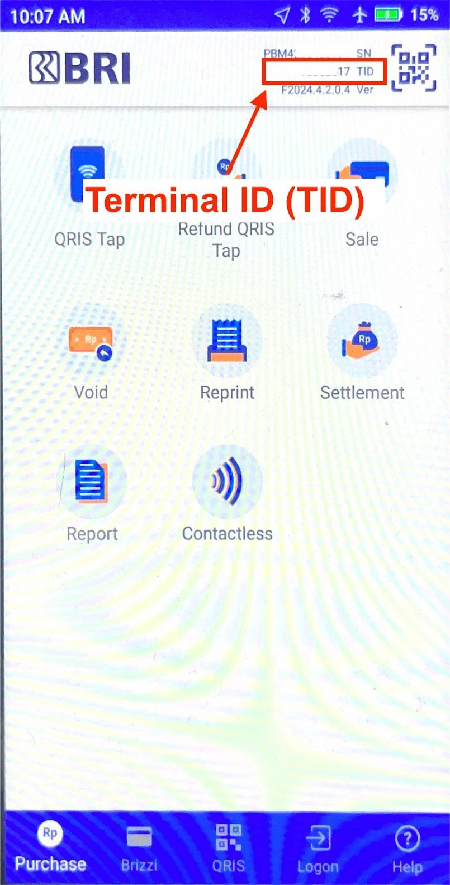
2
Find IP Address
Open the ECRLink app on the terminal and check the network settings for the IP address.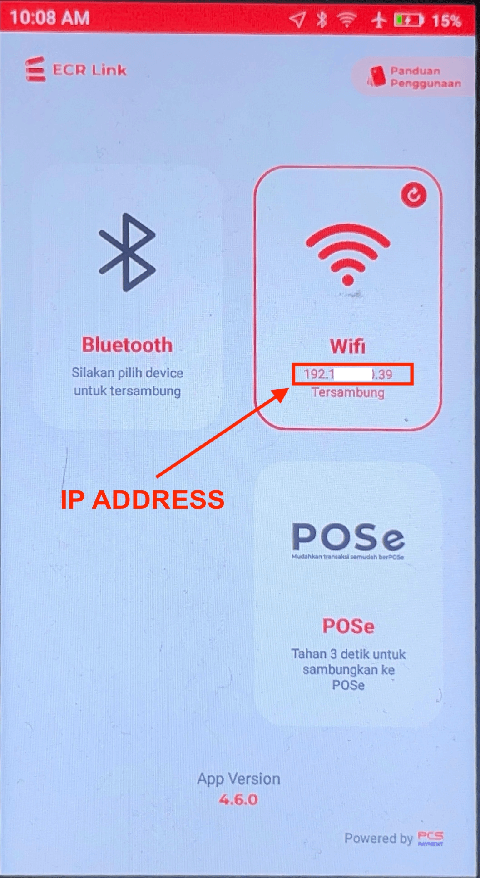
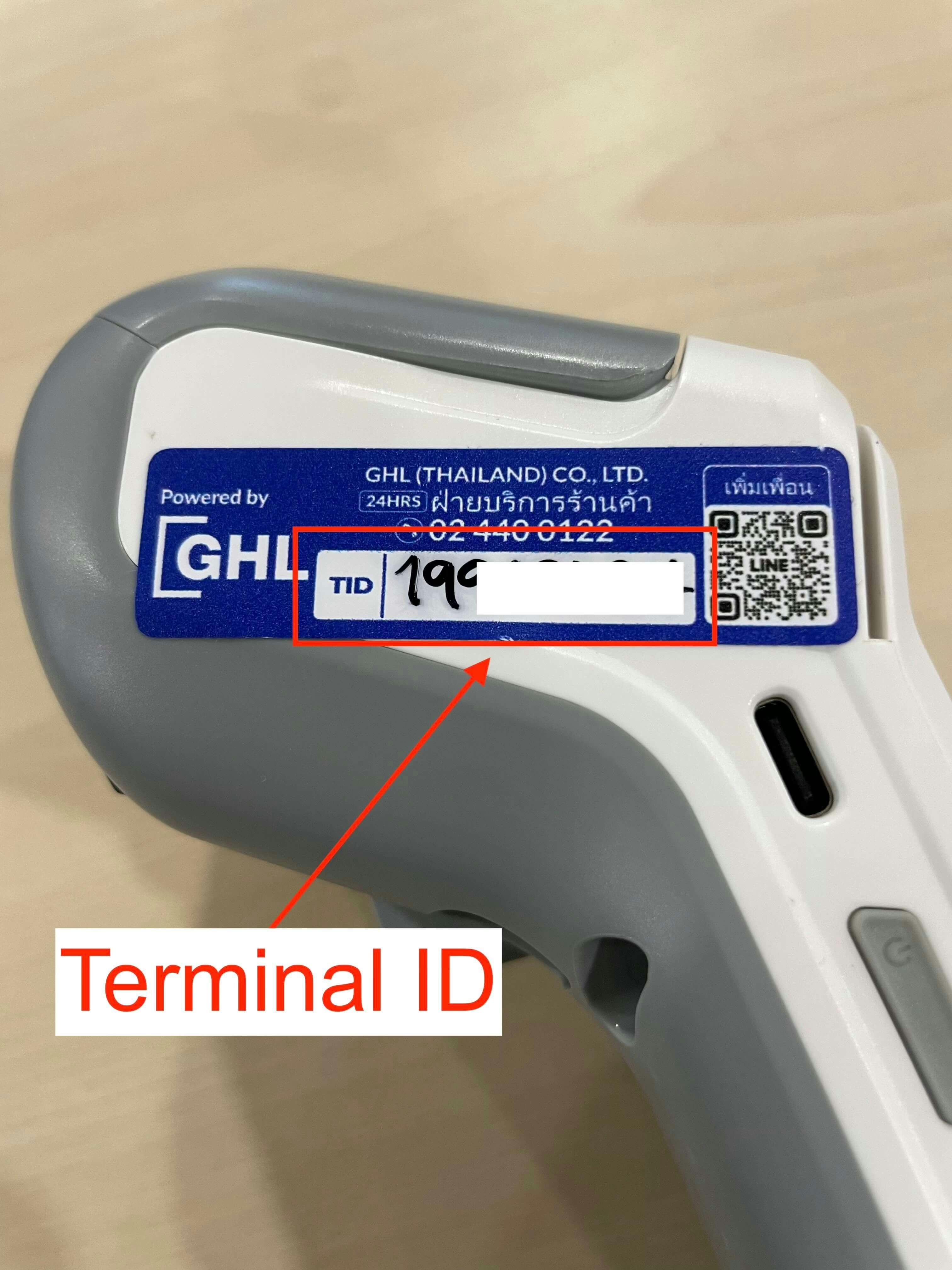
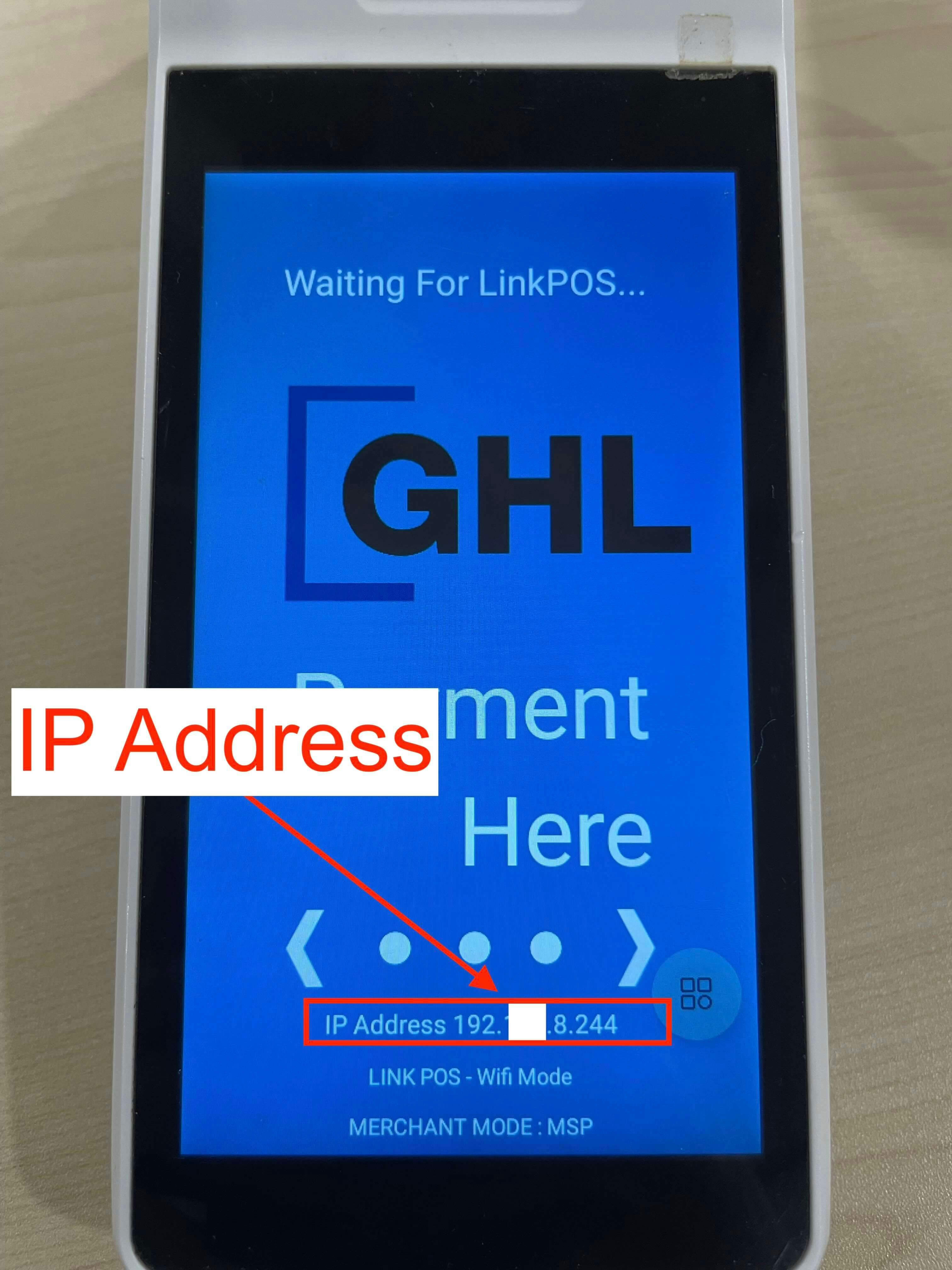
Screenshots and UI layouts may vary by firmware or app version. Refer to the latest vendor documentation if the interface differs from these instructions.